You need a Railway account. Railway is a paid service, and an account whose
trial has ended may be unable to deploy anything new.
Add the account
1
Press Add account on the Accounts screen
Open Accounts in the admin screen and press Add account.
2
Pick Railway and name the account
Under Sign in with, pick Railway. There is no client to type in.Give the account a short name. It is the name you use when you tell Claude
which account to act on, such as 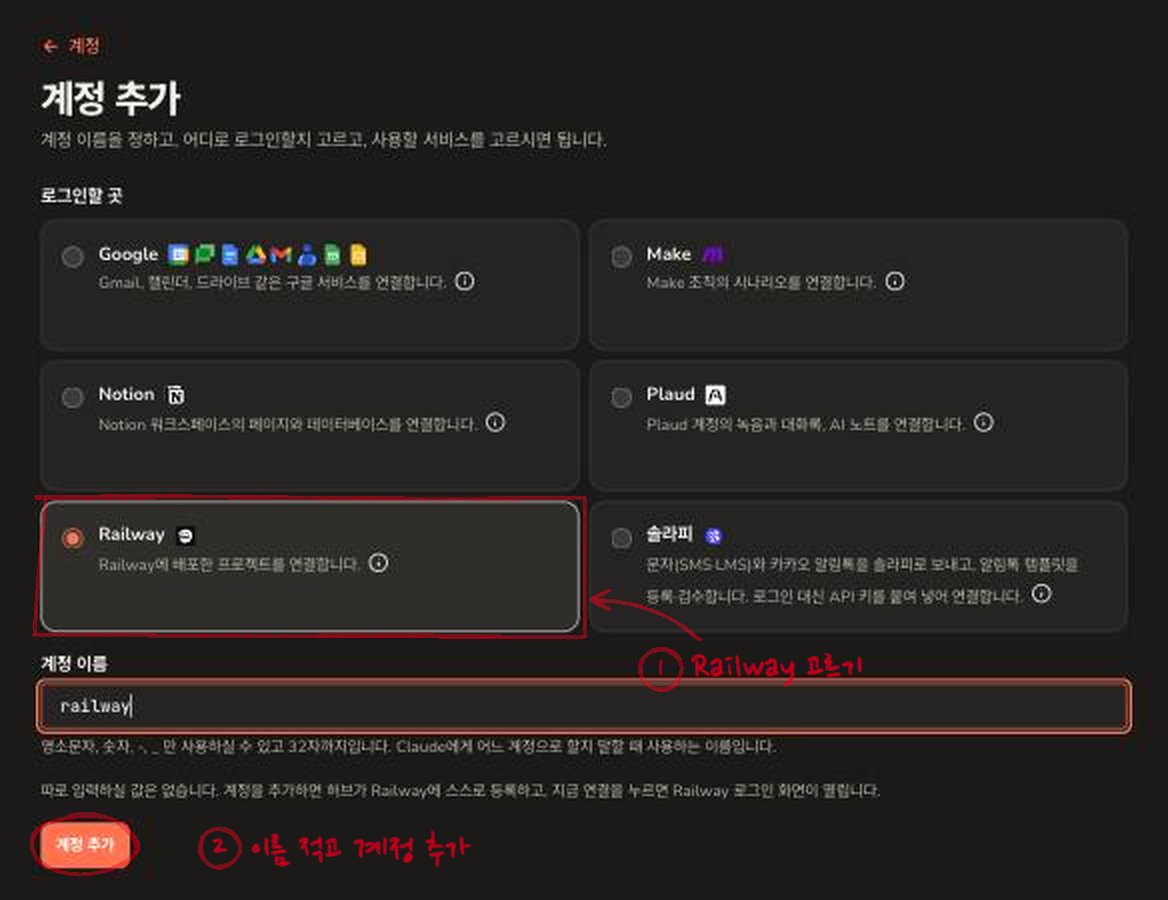
railway or my-apps. Lowercase letters,
digits, - and _ only.3
Press Connect now
A screen says the account was added. Press Connect now.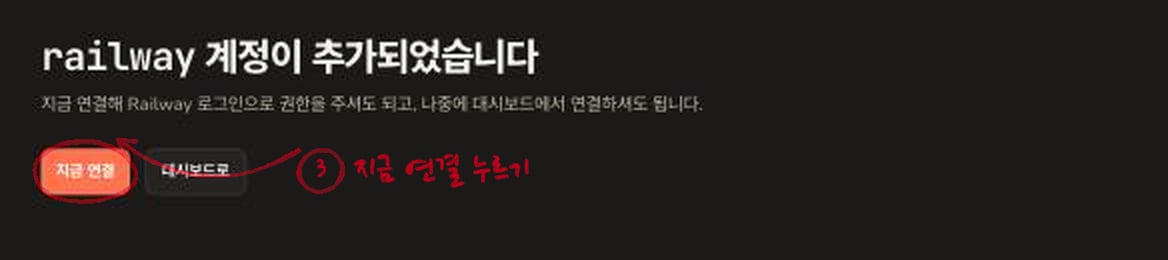
4
Allow it on Railway's screen
Railway’s screen opens. Sign in first if you are not signed in.By default the hub may use All workspaces. To allow only some, press
Change and pick them. Then press Authorize.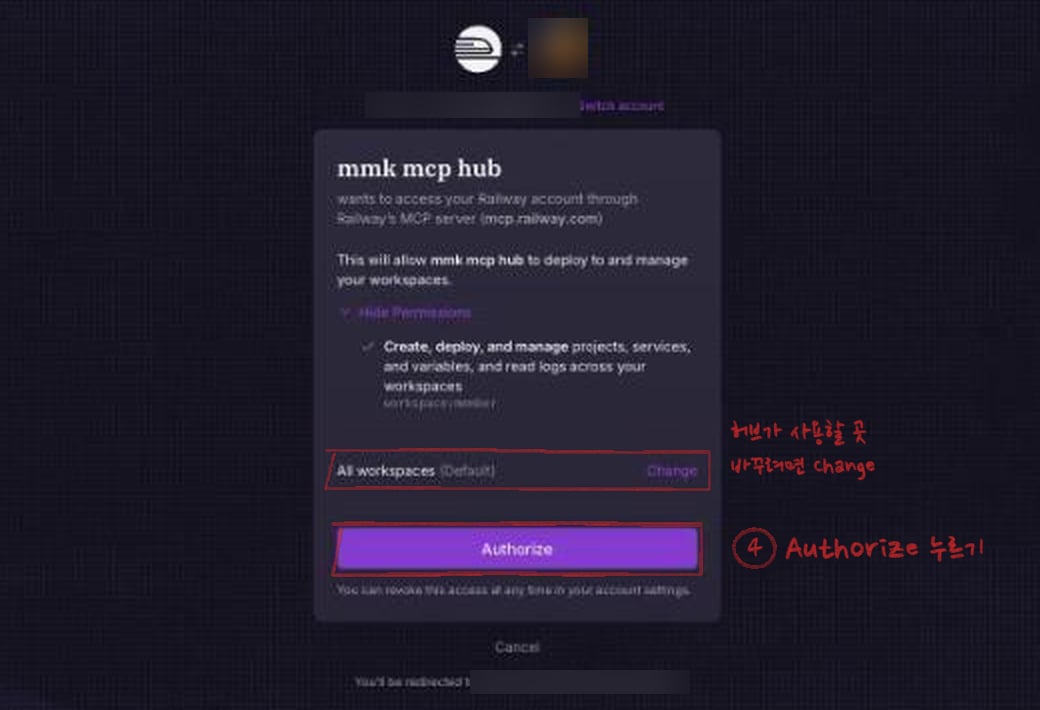
5
Refresh Claude's tool list
Claude keeps its own copy of the tool list, so it does not notice a new
account by itself. Refresh Claude’s tool list, then ask
in a new conversation.
Things to ask Claude
- “Show me my projects on Railway”
- “Read the logs and tell me why the latest todo-app deploy failed”
- “Redeploy todo-app”
What it can do
Close to seventy tools that Railway provides come through as they are: see projects, services, environments and deployments, change variables, redeploy and read logs. One tool hands multi-step jobs to Railway’s own agent. With that many tools, if you want to leave room under Claude’s tool limit, switch off the ones you do not use on the account’s page, or move them to a separate connection profile.Disconnect
Either of these works:- Delete the account in the hub’s admin screen.
- Revoke mmk mcp hub in Railway’s account settings.