Add the account
1
Open Accounts and press Add account
In the admin screen, open Accounts, then Add account.
2
Choose Plaud and name it
Under Signs in with, choose Plaud. The client fields a Google
account shows disappear, because there is nothing to fill in.Give the account a short name, the one you will say to Claude when you
want it to look in those recordings: 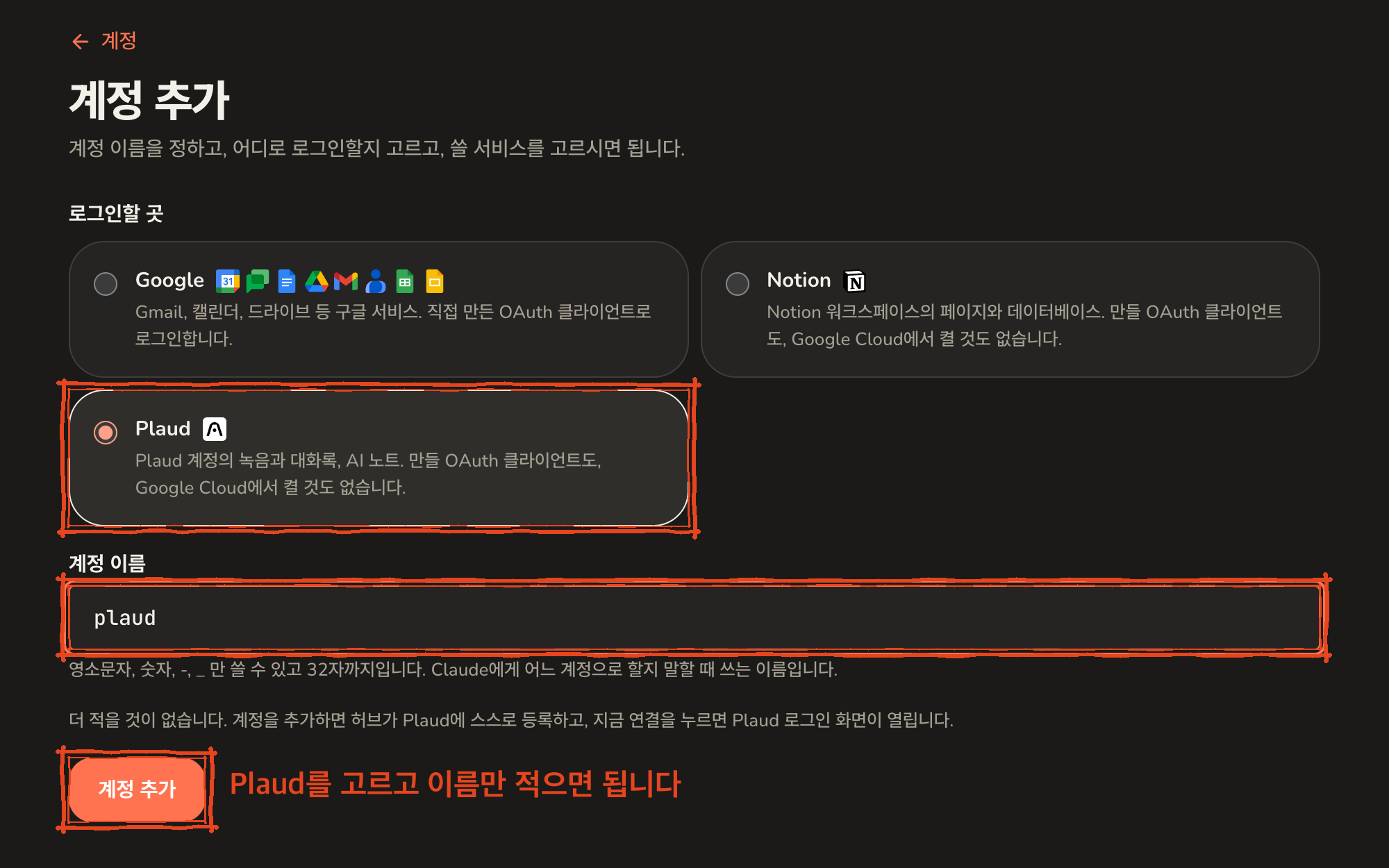
plaud, meetings. Lowercase
letters, numbers, - and _ only.3
Press Connect now
The screen says the account has been added. Press Connect now.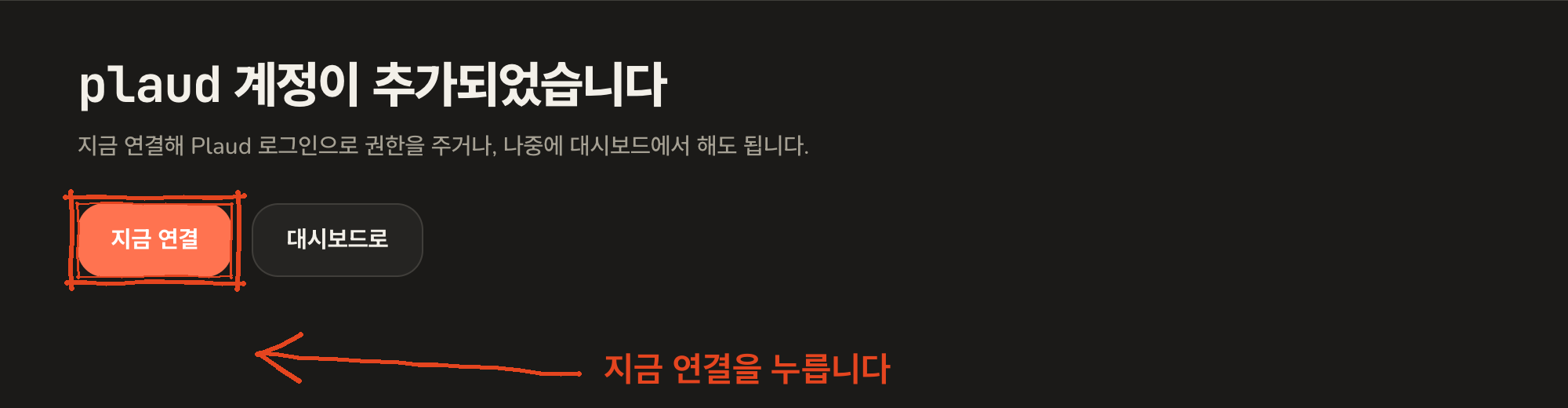
4
Allow access on Plaud's page
You land on Plaud’s own page. Sign in with your Plaud account if you are
not already; the page says who you are logged in as at the bottom, with
Switch account if it is the wrong one.The page is titled Plaud-MCP wants to access your workspace, and
lists what the hub will be able to read: your name and email, the basic
details, audio, transcripts, highlights, summaries and notes of all your
recordings. Press Allow.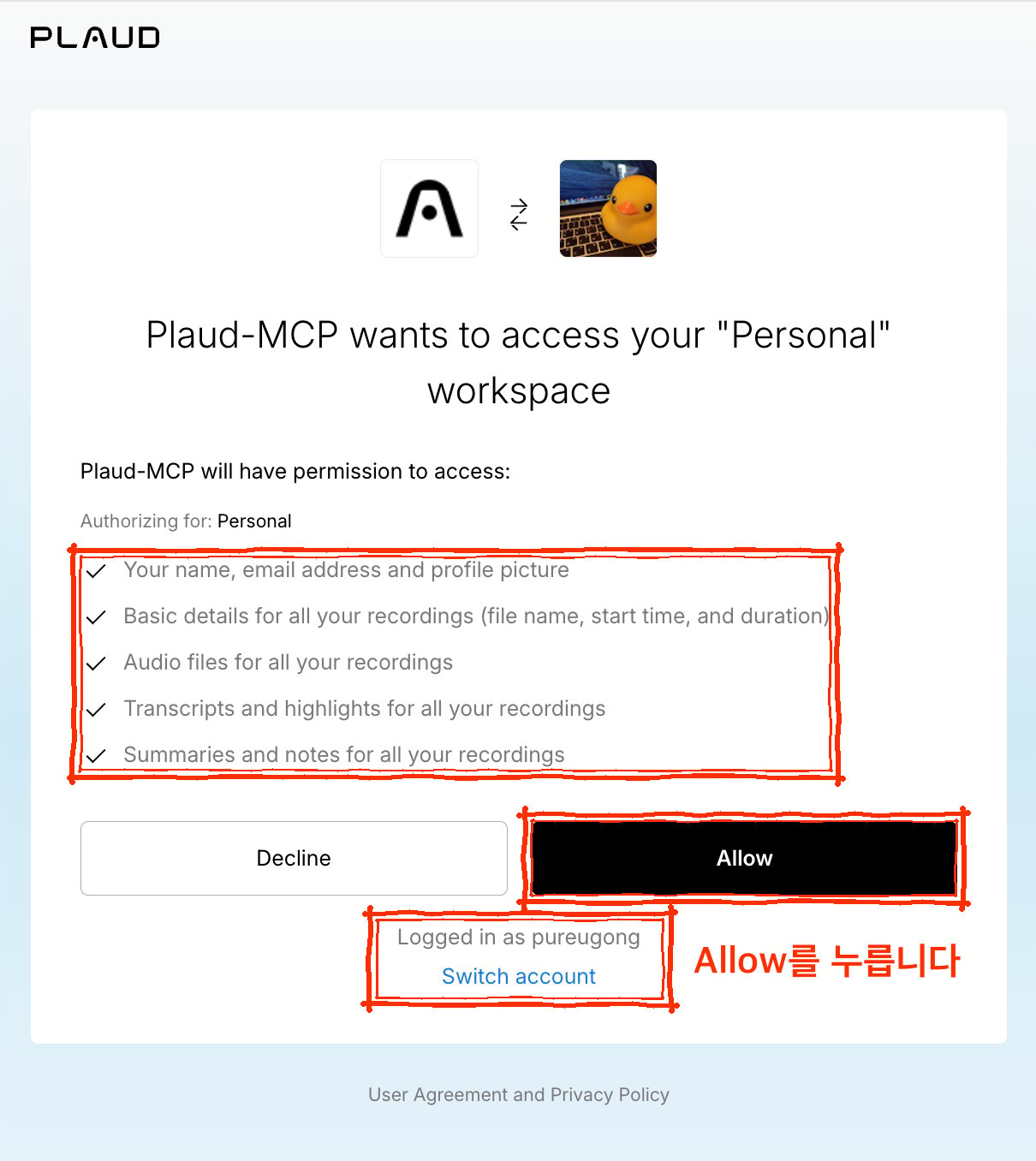
5
Refresh Claude's tool list
Claude keeps its own copy of the tool list and does not notice the new
account on its own. See refreshing Claude’s tool list,
then ask in a new chat.
What to ask for
Once connected, Claude can list your recent recordings, open one, and read its transcript or its AI note. Ask for things like “what was decided in yesterday’s meeting” or “find the recording where we talked about pricing and summarise it”, naming the account if you have more than one. The transcript passes through your own hub and through Plaud’s MCP service on its way to Claude. The hub does not keep a copy.Several Plaud accounts
Each Plaud account is its own account on the hub, exactly like a second Google account. Add another, choose Plaud again, and sign in as the other Plaud user on Plaud’s page. The account name is what you say to Claude.When it needs reconnecting
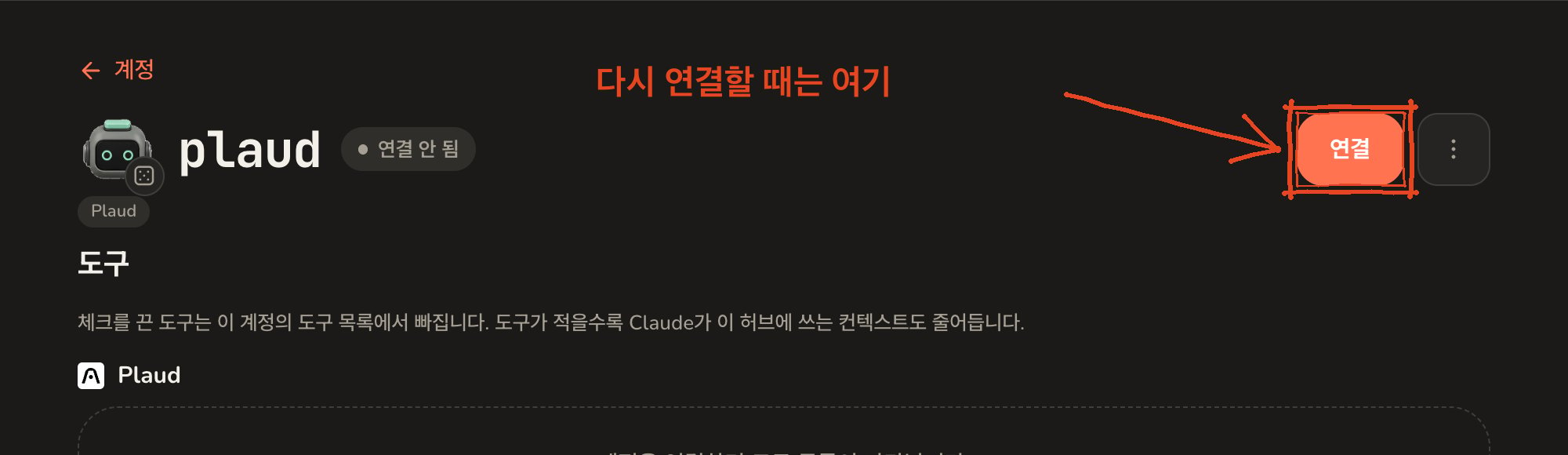
Plaud can end a connection on its side, for example after a long stretch without use, or if you change your Plaud password. The account is then marked as reconnect required on the hub. Reconnect at the top right of its page goes through the same sign-in as above. An account that has never been connected shows Connect in the same place.