Add the account
1
Choose Make and name the account
Open Accounts in the admin screen and press Add account. Under Sign
in with, choose Make and give the account a short name. It is the name you
use when you tell Claude which account to use. Lowercase letters, digits, 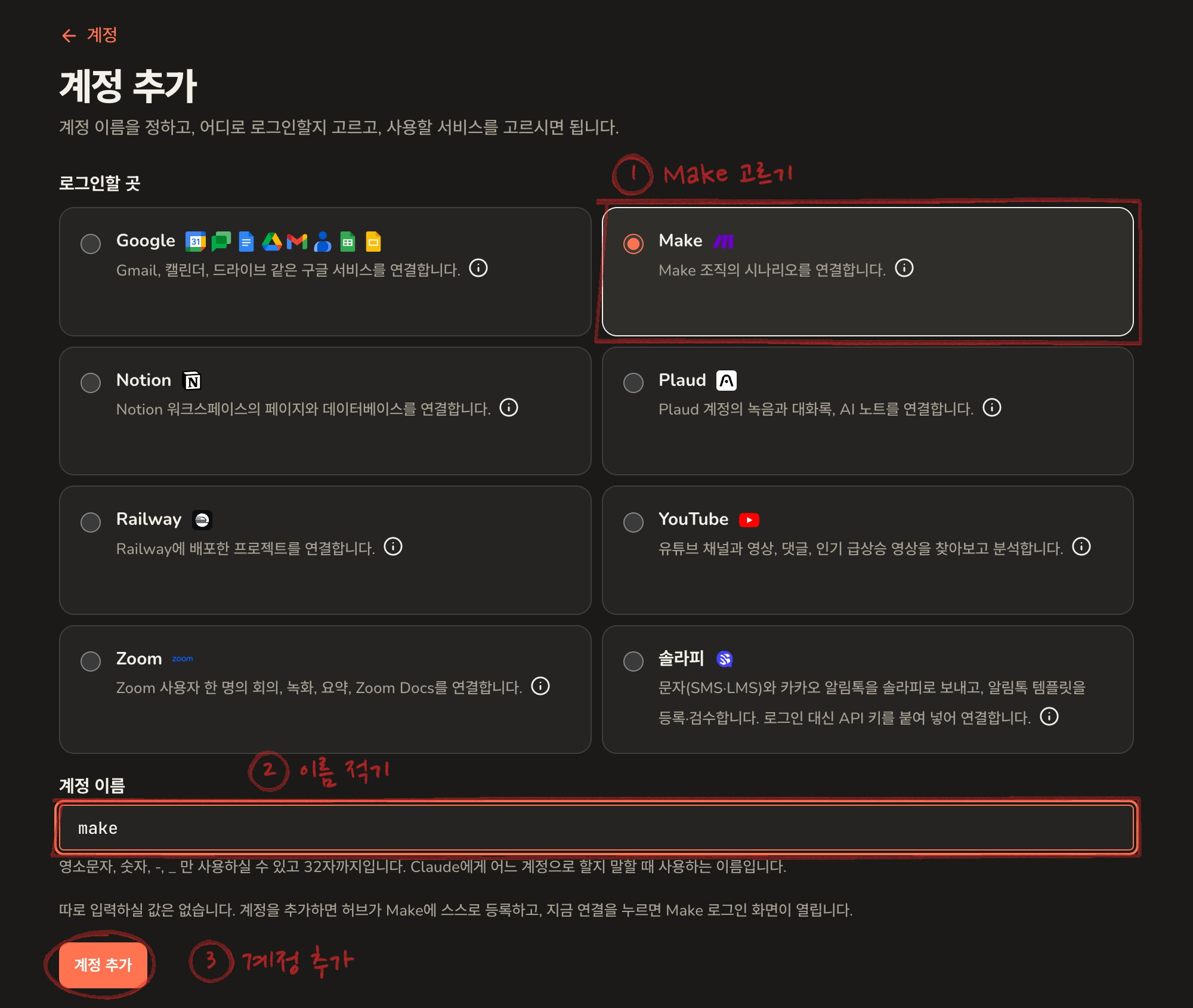
-
and _ only.There is nothing else to fill in. Pressing Add account makes the hub
register itself with Make, which can take a few seconds.2
Press Connect now

3
Choose the organisation and permissions on Make
Make’s sign-in screen opens. Sign in with the account you use for Make.Make then asks which organisation and which permissions to give the hub. An
orange note at the top says “This client isn’t verified by Make”. It appears
because each hub registers itself with Make, and you can carry on.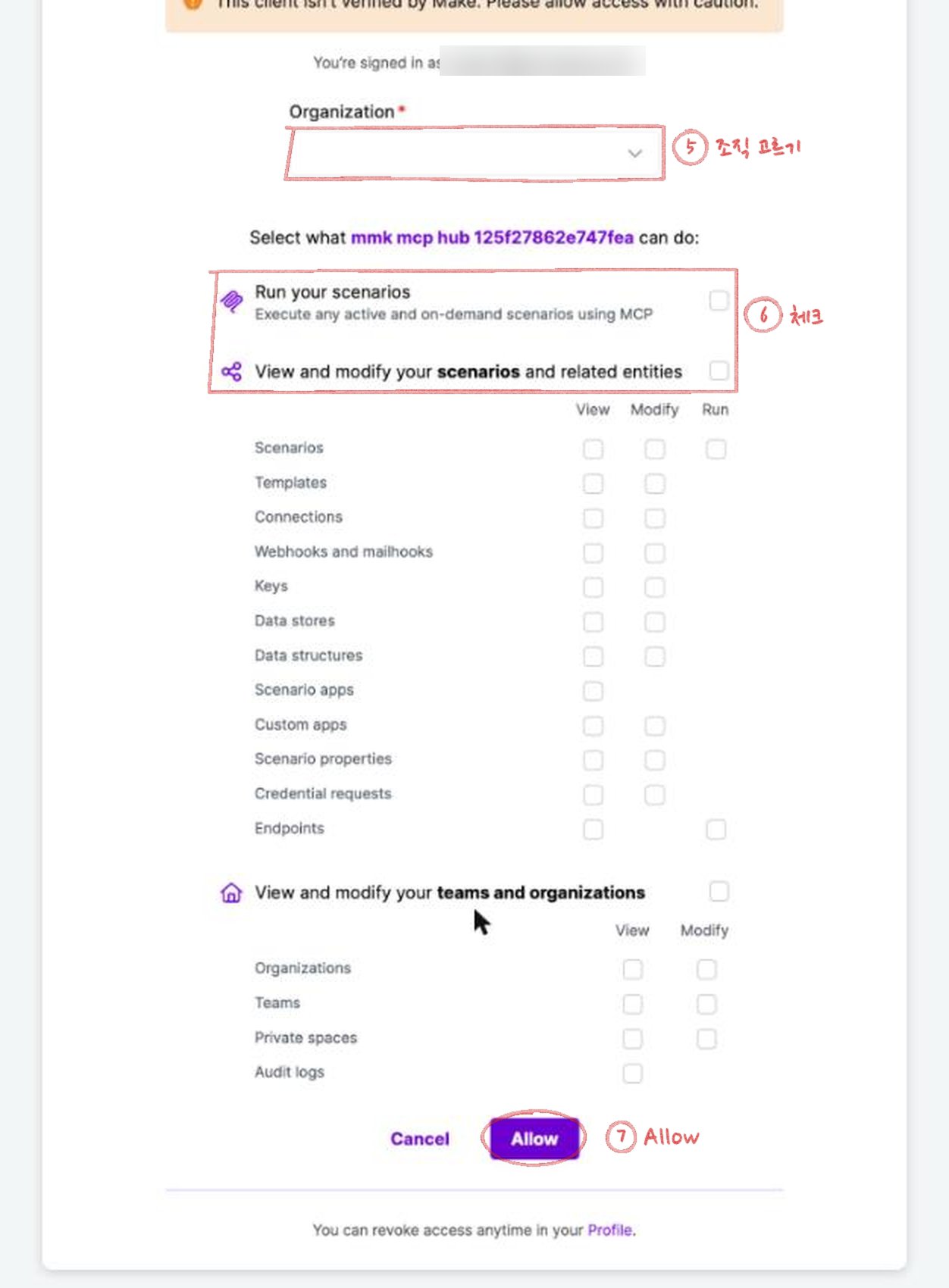
- Under Organization, choose the organisation Claude should work in. Only that organisation’s scenarios are visible to Claude.
- Tick what Claude may do. Every box starts empty, and allowing with none
ticked leaves Claude nothing it can do.
- To let Claude run scenarios, tick Run your scenarios.
- To let it look at and change scenarios and their runs, tick View and modify your scenarios and related entities. To allow looking only, tick just the View column in the table below it.
- Organisation and team details are chosen the same way under View and modify your teams and organizations.
- Press Allow.
4
Refresh Claude's tool list
Do a tool list refresh in Claude, then ask in a new
conversation.
Which scenarios Claude can run
Each Make scenario that is active and scheduled On demand becomes one of Claude’s tools. A scenario that runs on a timetable, every hour for example, does not. Switch the schedule of a scenario you want Claude to run to On demand in Make. After making a scenario or changing its schedule, choose Refresh schemas in the menu at the top right of the Make account page on the hub, then refresh Claude’s tool list as well. Management tools come along too: listing scenarios, looking at runs, making and editing scenarios. They do more than read. They can switch scenarios on and off or delete them, so for anything that changes a scenario let Claude say what it is going to do before it goes ahead.When there are many tools
With many scenarios, Make alone brings dozens of tools. Every tool takes up room in every conversation and Claude has a limit of its own, so when an account brings a lot of them the hub tells you on connecting and offers two ways out:- Keep only the tools you need.
- Give the Make account its own MCP address. See connection profiles.