Your hub works in any AI app that supports MCP, not only Claude. All it needs is one address. For Claude, see Connect Claude in the quickstart.

Choose the address

Pick the address at the top of the Connect your assistant card in your admin screen. The Connect MCP card on your hub page at hub.magicmealkits.com works the same way. If your admin screen does not show this card, upgrade first.
  • Default address: every account connected to your hub, except the ones taken off the default address.
  • Connection profile address: only the accounts in that profile, and read-only if the profile is read-only. Make profiles under Connection profiles.
Each address is added as its own connector. Once you pick an address, every button and message for the apps below uses it.

ChatGPT

1

Open connector settings

In the card, choose ChatGPT and click Open ChatGPT connector settings. ChatGPT only lets you make your own connector with developer mode on. If it is off, turn it on first; the card’s Official guide shows where.
2

Paste the address

Paste the address you copied from the card into the new connector’s URL field, and choose OAuth for authentication.
3

Allow it on your hub

When your hub’s sign-in page opens, sign in and click Allow.

Cursor

1

Add it

In the card, choose Cursor and click Add to Cursor. Cursor opens with the address filled in. Click Install.
2

Allow it on your hub

When it asks you to sign in, sign in to your hub and click Allow.

Muse
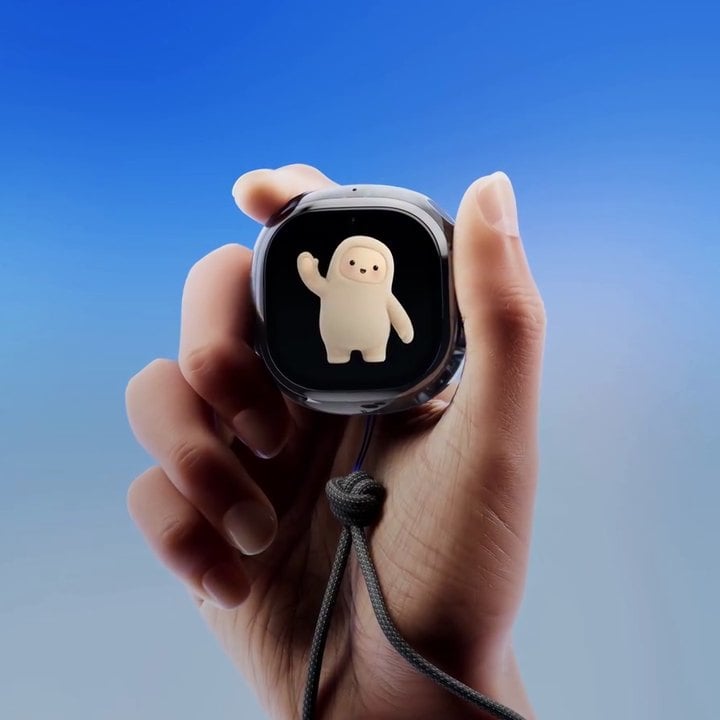
A hand holding Meta's Muse Charm device, with the Muse character waving on its screen
Muse is supported too. You can use the accounts connected to your hub from Muse, Meta’s AI agent. Muse has no settings screen for connectors; it builds them in chat. Because Muse runs somewhere without a browser, your hub approves it with a short code instead.
The Muse chat pictures below are illustrations, not screenshots, and the real Muse screen may look different. The hub’s admin and approval screens are real, shown in Korean; the buttons are in the same places in English.
1

Copy the message
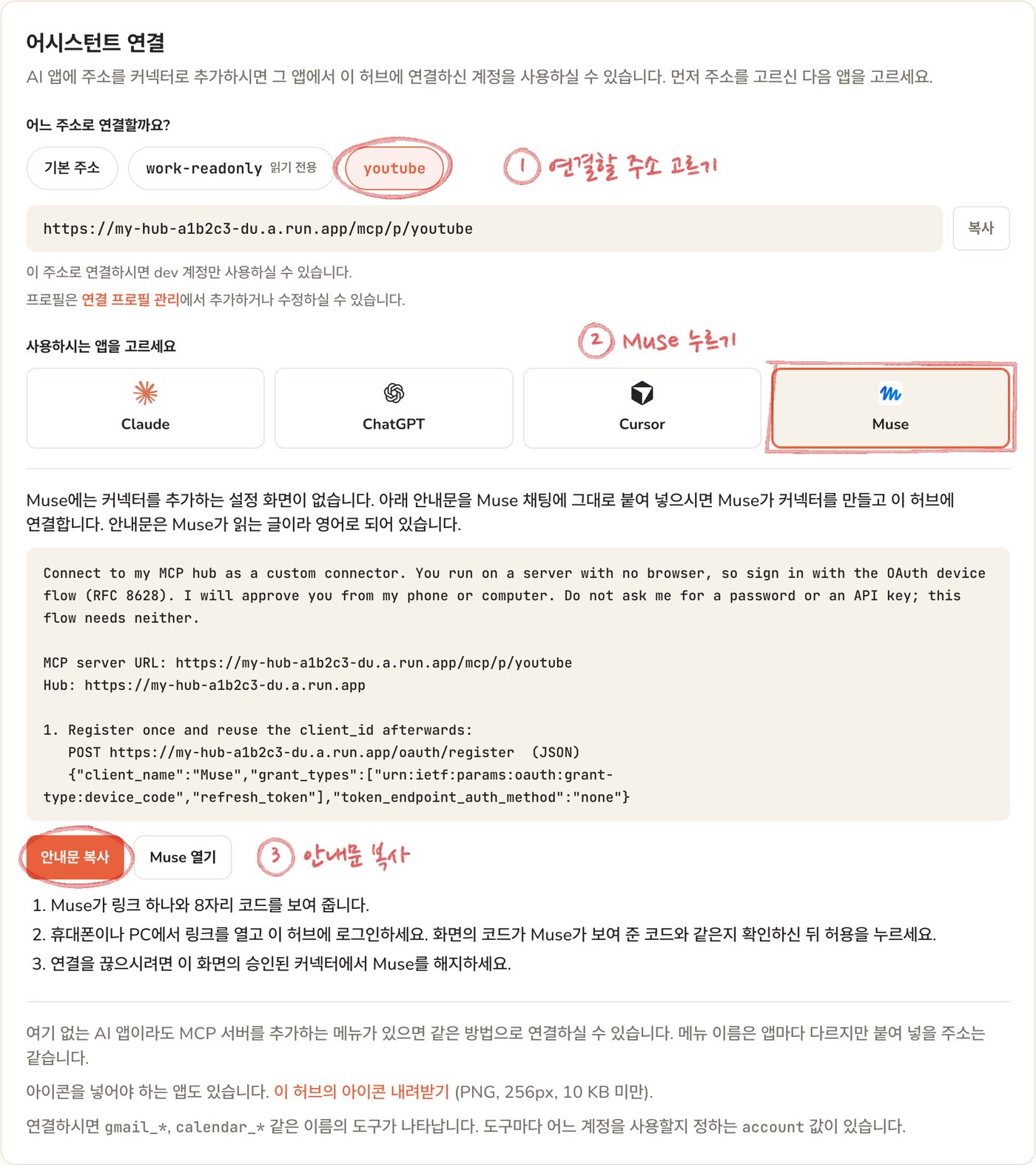
The Connect your assistant card, with the youtube address, the Muse tab and the Copy message button marked 1, 2 and 3 in red
In the Connect your assistant card, pick the address, choose Muse and click Copy message.
2

Paste it into Muse

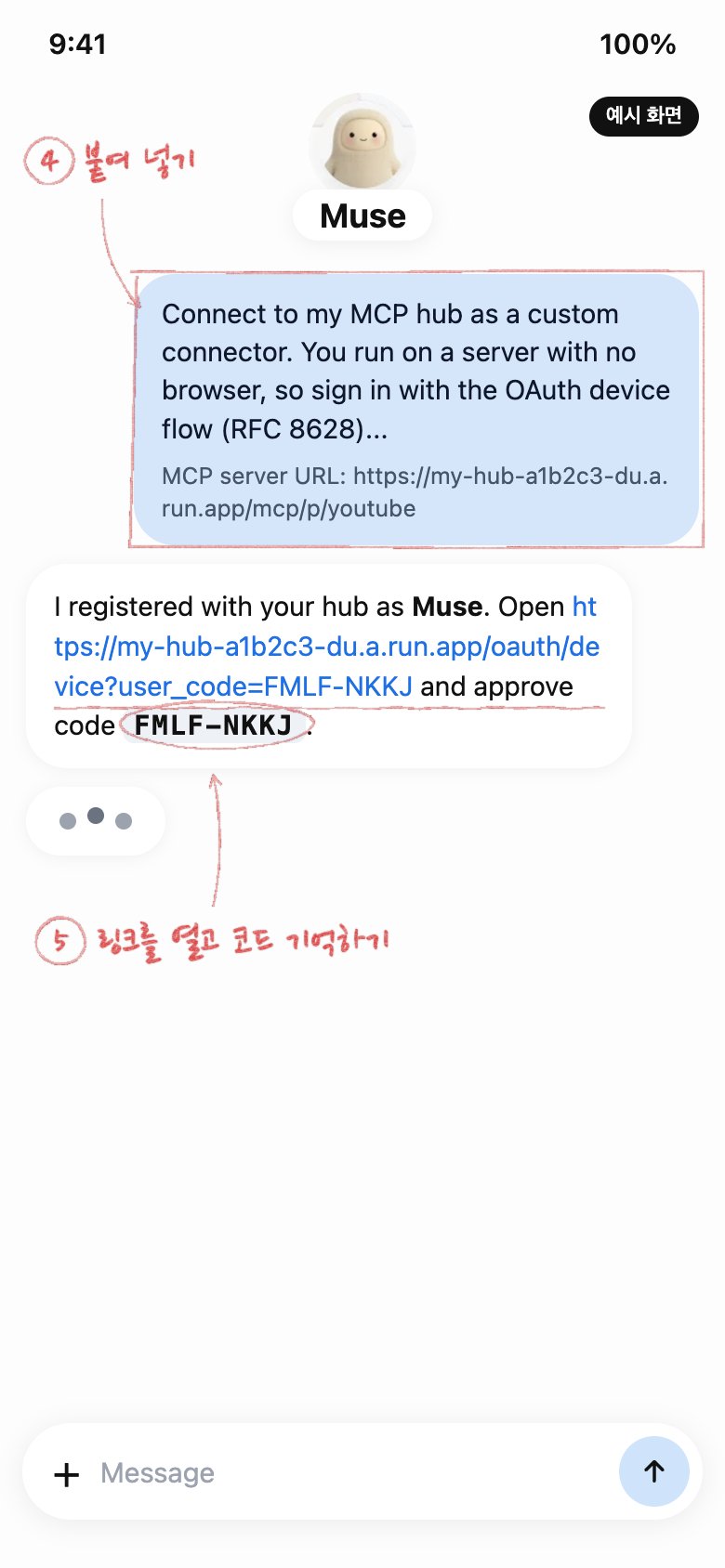
Illustration of a Muse chat: the pasted message, and Muse replying with a link and an eight-character code, marked in red
Paste the message into a Muse chat as it is. Muse shows you a link and an eight-character code.
3

Approve it on your hub

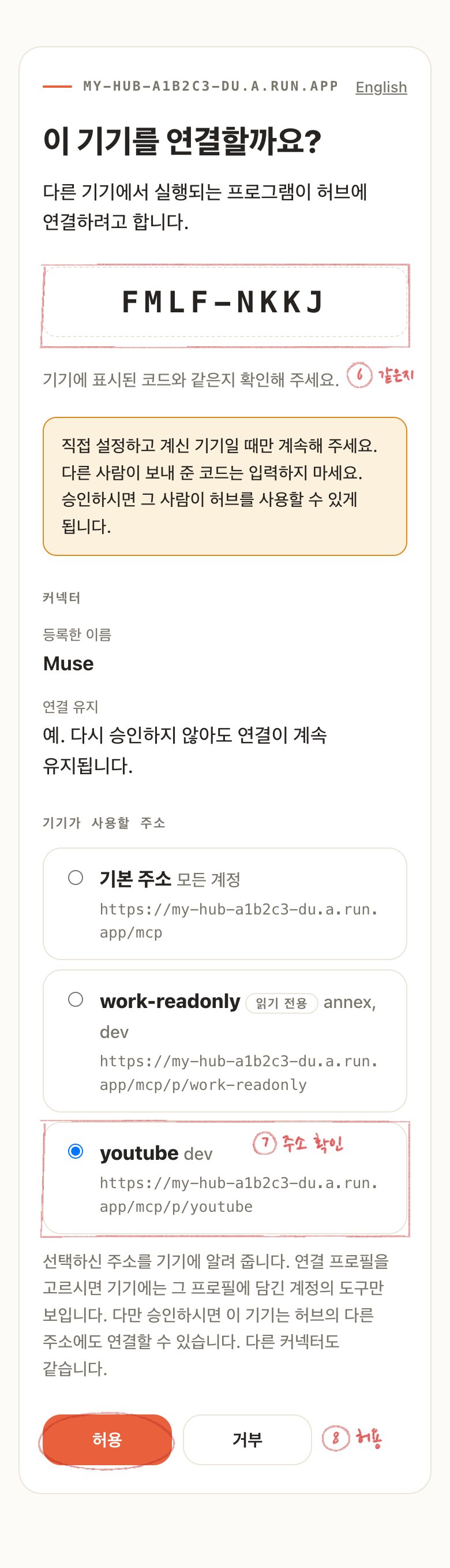
The hub's device approval page, with the code, the selected youtube address and the Allow button marked in red
Open the link on your phone or computer and sign in to your hub. Check the code matches the one Muse showed you, check Address the device will use is the address you want, then click Allow.
4

Connected

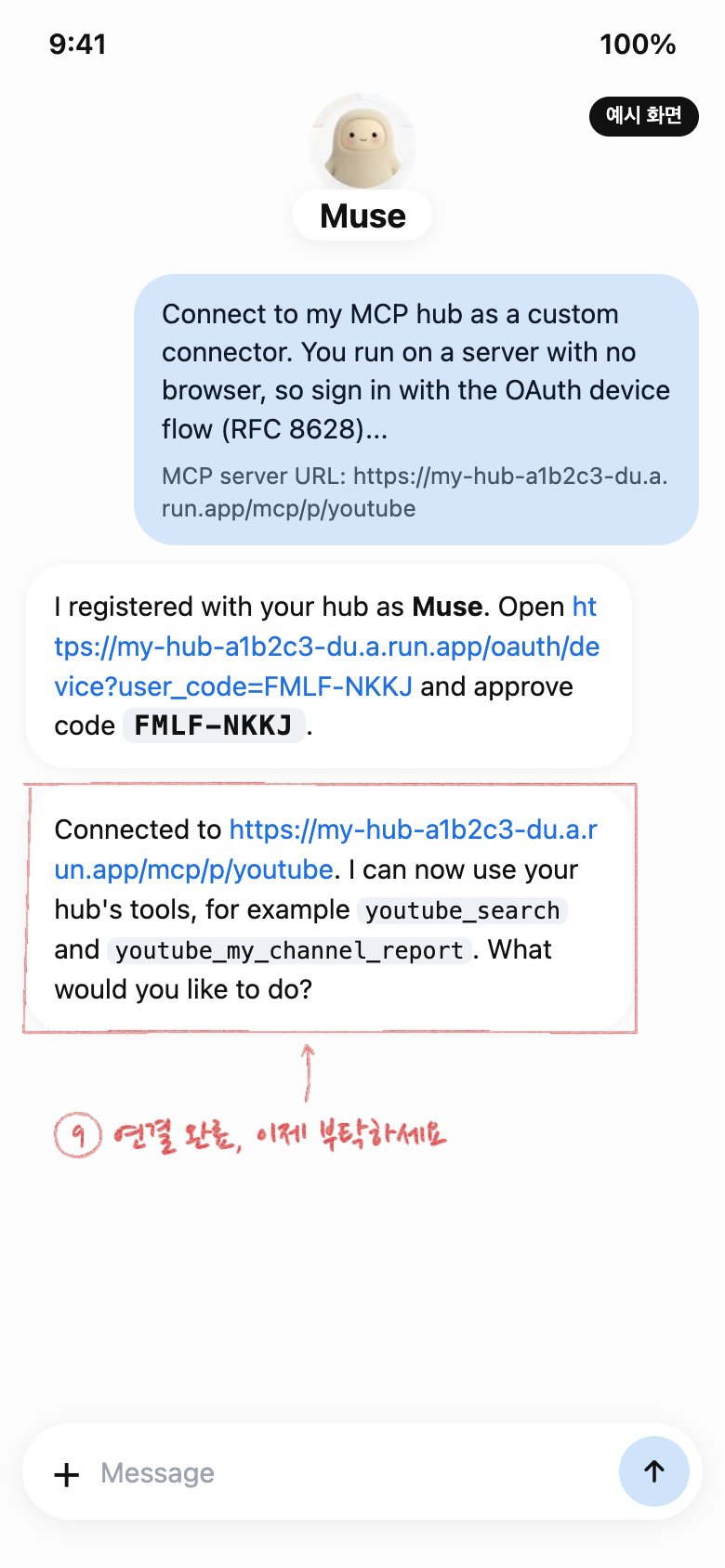
Illustration of a Muse chat: Muse's reply saying it is connected to the hub, boxed in red
Muse tells you it is connected. Ask it for anything your hub’s accounts can do, such as a report on your YouTube channel.
Never approve a link or code someone else sent you. Approving it lets them use your hub.
The Approved connectors card, with the Revoke button on the Muse row circled in red
Once approved, Muse stays connected without asking again. To disconnect it, revoke Muse under Approved connectors in your admin screen; it loses access to your hub at once.