the client isn’t marked as an AI agentEven if you have not seen that answer yet, do this once, before November 11, 2026.
What is changing
Google is opening Gmail, Calendar, Drive, Docs, Sheets and the other Workspace services to AI agents through a new gateway, and an OAuth client that uses it must be marked for an AI agent. Most of the hub’s Google tools go through that gateway.
Google gives no way for another program to change this setting, so the hub and
the install page cannot do it for you. It is one checkbox in the console and
takes about five minutes.
Mark your existing client
The hub admin UI can take you straight there. On the Clients screen under Setup, each client has Mark it for an AI agent in the Google console, which opens that client’s page in the console. Start from the second step below. The button is there from v0.40.0; if you do not see it, start from the first step.1
Open the client list
In the Google Cloud console,
pick the project the hub is installed in. Clients in the left menu lists
your OAuth clients.Click the name of the client you gave the hub. If you are not sure which one
it is, match the start of the client ID on the hub admin UI’s Clients
screen against the Client ID column.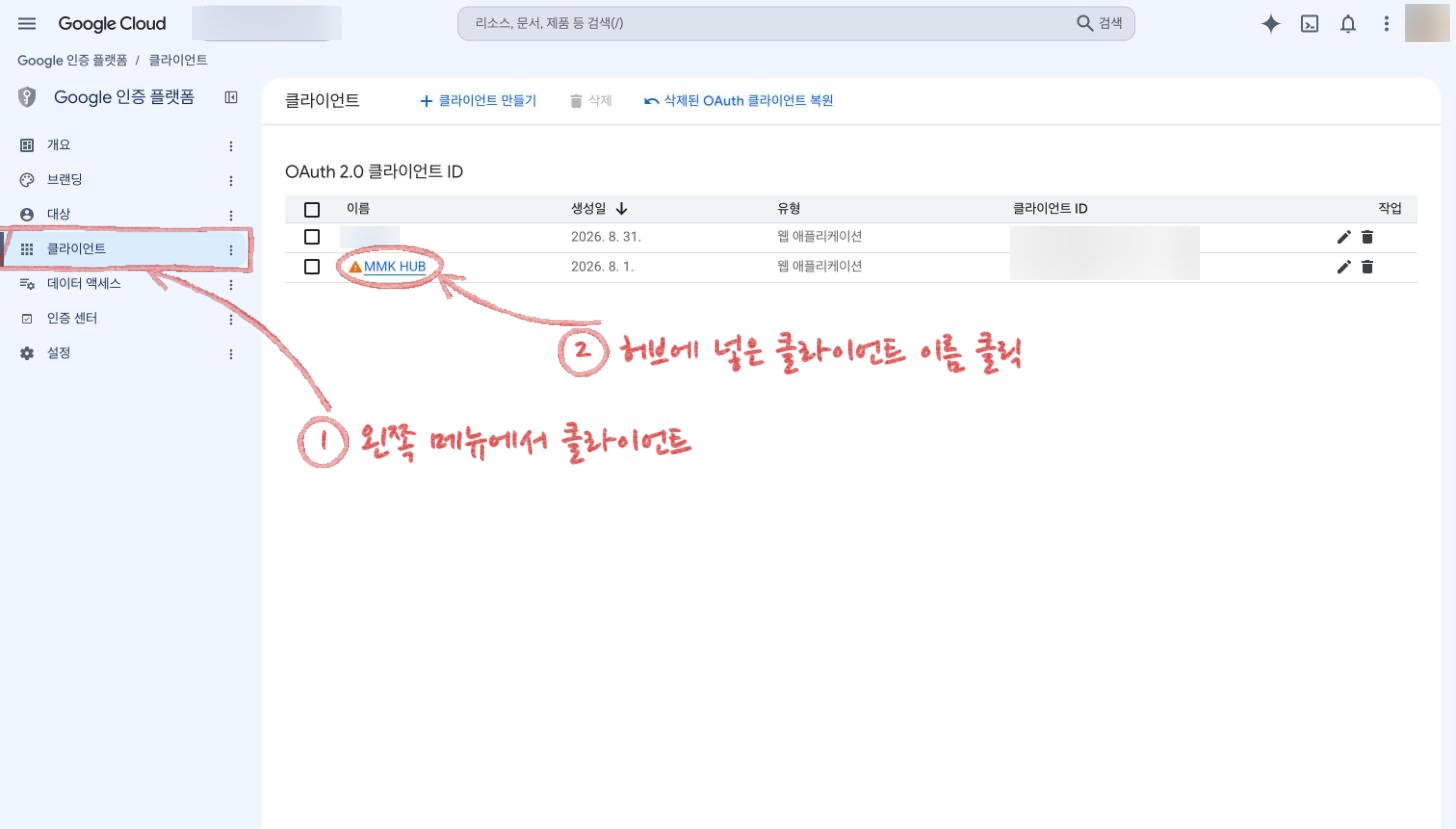
2
Tick it and save
Scroll down, tick Use this client for an AI-powered agent, and click
Save.Leave every other field alone. Removing or changing an Authorized
redirect URI in particular disconnects your accounts.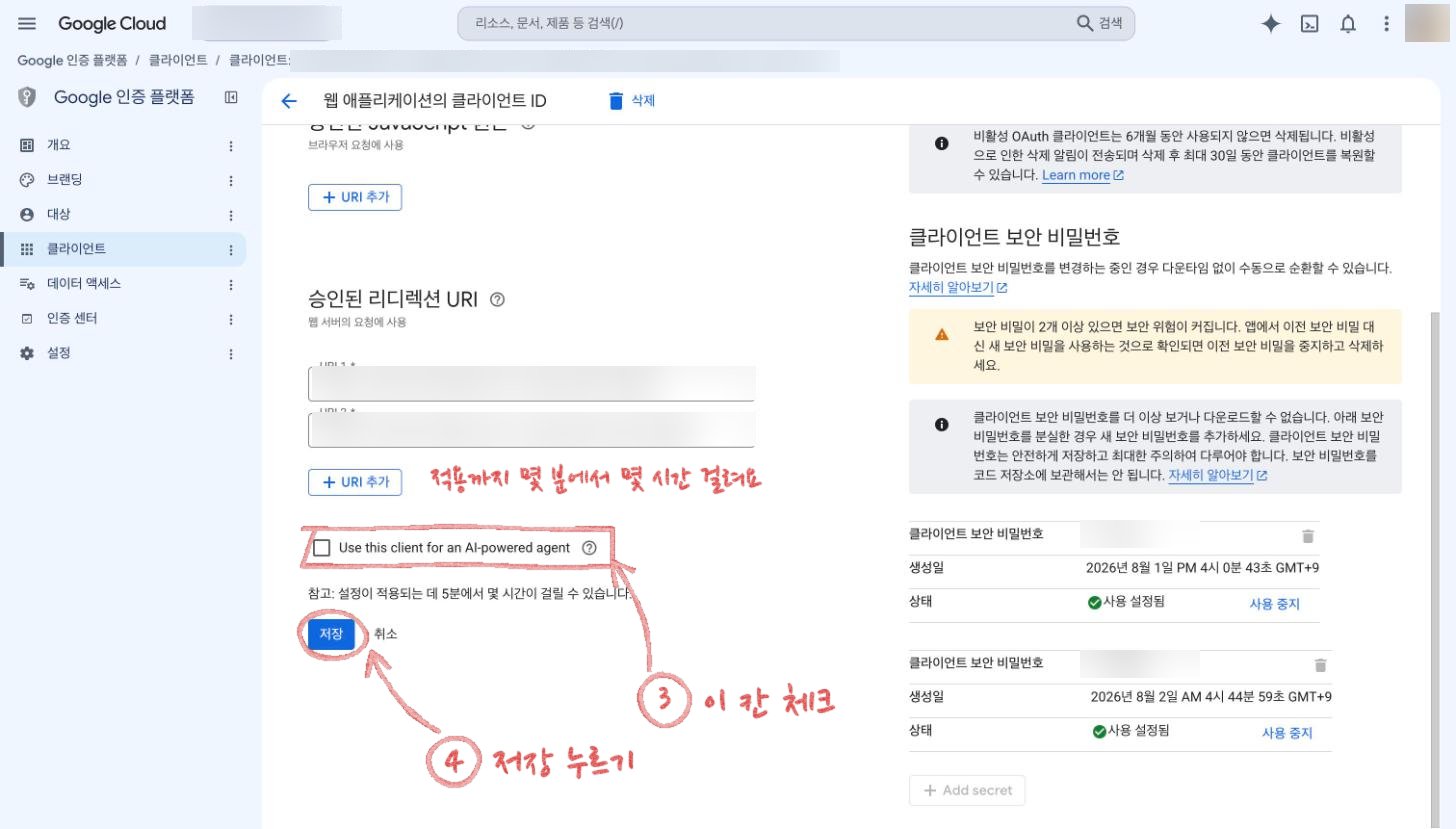
3
Wait for it to apply
As the screen says, it can take from five minutes to a few hours to apply.
Keep using the hub meanwhile; nothing needs reconnecting.
Worth knowing
- Ticking it grants nothing new. What the hub can read and change stays what you agreed to when you connected each account.
- A company (Google Workspace) account may need its admin. Google applies separate security controls to AI agent clients, and if your Workspace admin restricts AI agents, ask them to allow it.
- If the same client also serves another app, Google recommends separate clients for AI agents and for ordinary use. A client made only for the hub needs no thought.
When you create a new client
On a first install, or whenever you make a new client, tick it on the create screen. Nothing needs marking afterwards.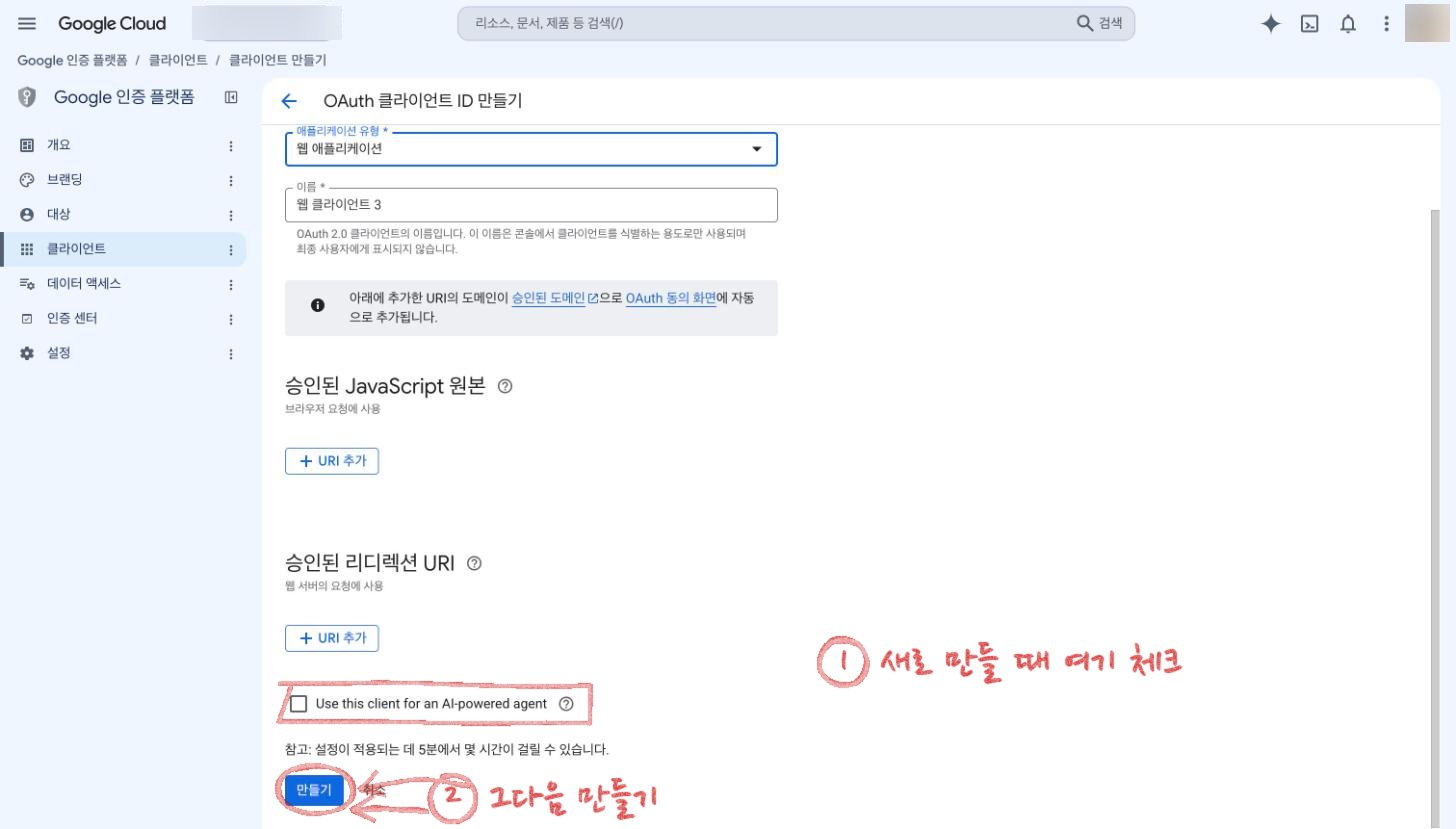
If November 12 has passed
The existing client cannot change, so make a new one and move to it.- Follow Creating your OAuth client and tick Use this client for an AI-powered agent while creating it.
- Add the new client on the hub admin UI’s Clients screen.
- Move each Google account onto the new client and reconnect it, the same way as in You connected an account with the wrong OAuth client.