First, which case is this
Two different situations produce the same warning, and they have opposite answers. Check this before doing anything. You meant to use two projects. Your Workspace organization blocks unverified apps, so the Workspace side needed its own project and its own client. Nothing is broken. What you need is for both project numbers to be on your Developer Preview application, which is covered in Developer Preview. Press This is what I meant on the warning and it stops coming back. Do not follow the rest of this page. You pasted the wrong credentials. You have one project, or you have two and took the id and secret from the wrong one. This is the case this page fixes.Move the account to the right client
You do not have to delete the account, and you do not have to start over. Other accounts are untouched.1
Add the correct client, if it is not there yet
Open Clients, then Add client. Paste the client id and secret from
the project your hub runs in. If you do not have a client there yet, make
one first: see Creating your OAuth client.Skip this step if the correct client is already in the list.
2
Change the account's client
Open the account. Under OAuth client, press Change client, pick the
one marked Same project as the hub, and press Change client again.The account is signed out at this point. That is expected: a Google sign-in
belongs to the client that was granted it, so the old one cannot carry over.
3
Connect the account again
Press Reconnect and sign in to Google. The permissions screen appears as
it did the first time, and you have to tick Select all again.The account works again once this finishes, and every connector using it
works again with it.
4
Delete the wrong client
Back on Clients, the wrong client now has no accounts on it, so
Delete client appears in its menu. Remove it so nobody picks it again
by mistake.While a client still has accounts, that menu entry is not there at all, and
the screen says which accounts to remove first.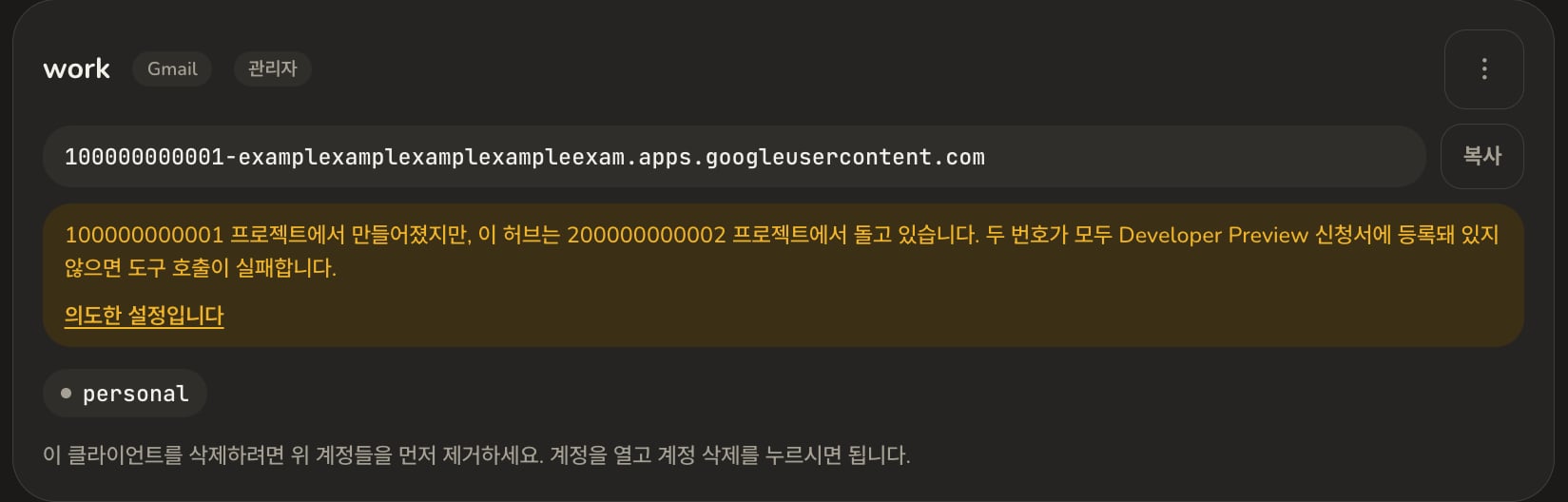
Rotate secret does not help here. It replaces the secret for the same
client id, and the id itself is what is wrong. Change client is the one
that moves the account.
Google still remembers the old client. The hub does not cancel the
permission you granted, so the old app stays listed under your Google
account’s third-party access until you remove it there. It cannot do anything
once the hub has forgotten its secret, so this is tidying rather than
something you have to do.
Asking Claude to do it
You can also ask Claude to move the account for you. It has a tool for this and will report back with the link you need to sign in again. It cannot do the sign-in for you, so the last step is still yours.Next
- Creating your OAuth client, if you need to make one in the right project
- Developer Preview, if it turns out you do want two projects