> ## Documentation Index
> Fetch the complete documentation index at: https://docs-hub.magicmealkits.com/llms.txt
> Use this file to discover all available pages before exploring further.
# Stopping the hub
> What Stop hub does, what it takes with it, and what changes if you deploy again afterwards.
Stopping removes the hub from your Google Cloud project. Your Google accounts
stay connected to Google; what goes is the thing that was talking to them on
your behalf.
Nothing is billed once it is gone, and nothing is billed while it sits idle
either, so cost is rarely the reason to do this.
## Before you stop
**Stopping is not pausing.** Deploying again afterwards issues a **new admin
token**, and the connector tokens your clients hold are signed from it, so
every client you have connected will have to connect again.
If you are only trying to move to a newer version, use **Upgrade now** on the
installer instead. Nothing has to be redone after that.
See [Setting up](/quickstart#keeping-it-up-to-date).
What does survive is more than the interface implies. The accounts you
connected are still there when you deploy again, because they are kept in your
own project rather than in the hub. So is your OAuth client. And the MCP
address is derived from your project and region, so it comes back the same:
the address in your client is still correct, it is the sign-in behind it that
was reissued.
## How to stop it
Go to [the installer](https://make.magicmealkits.com/v2/deploy) and scroll
to the bottom of the MCP Hub section.
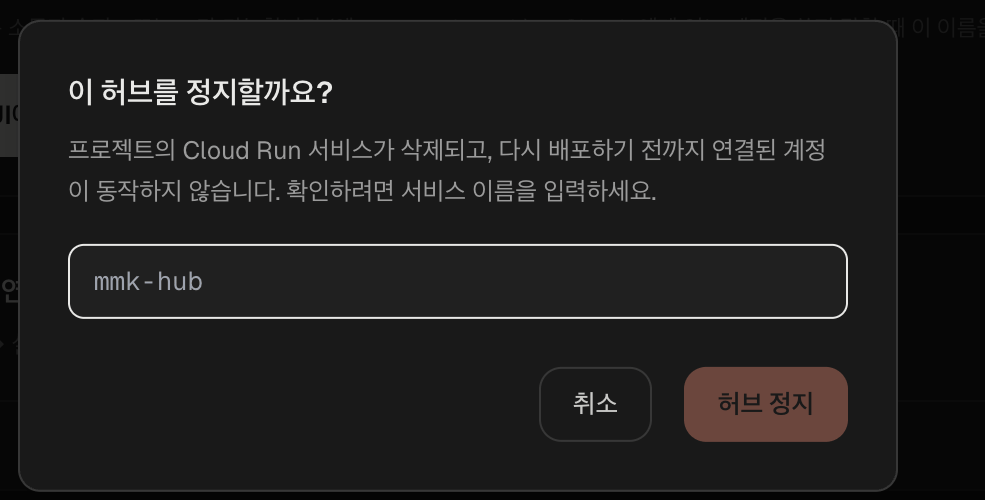
 The confirmation asks you to type it, and the button stays disabled until
it matches. It is `mmk-hub`, the same for everyone.
The confirmation asks you to type it, and the button stays disabled until
it matches. It is `mmk-hub`, the same for everyone.
 The deploy card comes back in place of the running one, so the page is
ready to install again whenever you want it.
## Afterwards
Connected accounts stop working immediately. Claude will report that it cannot
reach the connector rather than that anything is wrong with your accounts.
Deploying again brings them back as they were, still connected, without going
through Google's consent screens a second time. What you do have to redo is the
connector in each client, using the new admin token.
## Next
* [Setting up](/quickstart), if you are deploying again
* [Troubleshooting](/troubleshooting)
The deploy card comes back in place of the running one, so the page is
ready to install again whenever you want it.
## Afterwards
Connected accounts stop working immediately. Claude will report that it cannot
reach the connector rather than that anything is wrong with your accounts.
Deploying again brings them back as they were, still connected, without going
through Google's consent screens a second time. What you do have to redo is the
connector in each client, using the new admin token.
## Next
* [Setting up](/quickstart), if you are deploying again
* [Troubleshooting](/troubleshooting)