> ## Documentation Index
> Fetch the complete documentation index at: https://docs-hub.magicmealkits.com/llms.txt
> Use this file to discover all available pages before exploring further.
# You connected an account with the wrong OAuth client
> What to do when an account was added using a client from the wrong Google Cloud project, and every tool call fails.
You added an account, it connected, and then every tool call came back saying
permission was denied. On the **Clients** screen, that account's OAuth client
carries a highlighted box saying its project number is not the one your hub
runs in.
That usually means the client id and secret you pasted came from a different
Google Cloud project than you meant.
## First, which case is this
Two different situations produce the same warning, and they have opposite
answers. Check this before doing anything.
**You meant to use two projects.** Your Workspace organization blocks
unverified apps, so the Workspace side needed its own project and its own
client. Nothing is broken. What you need is for both project numbers to be on
your Developer Preview application, which is covered in
[Developer Preview](/developer-preview). Do not follow the rest of this page.
**You pasted the wrong credentials.** You have one project, or you have two and
took the id and secret from the wrong one. This is the case this page fixes.
## What cannot be done
The hub cannot swap one client for another on an account that already exists.
**Rotate secret** on the Clients screen replaces the secret for the same client
id, so it does not help here: the id itself is what is wrong.
You also do not need to start over. Only the affected account has to be
redone, and other accounts are untouched.
## Redo the account
Add the correct client before removing anything. Doing it in this order means
the correct client is already there to pick from when you add the account back.
Open **Clients**, then **Add client**. Paste the client id and secret from
the project your hub runs in. If you do not have a client there yet, make
one first: see [Creating your OAuth client](/oauth-client).
Both clients now sit in the list. The wrong one still has the account on
it, so it still shows the warning.
Open the account, scroll to the bottom, and use **Delete account**.
This removes the account and the sign-in the hub was holding for it. Any
MCP client using that account stops working until you finish the next two
steps.
Open **Accounts**, then **Add account**. Use the same name as before, so
anything that referred to the account by name keeps working.
When the form offers a client, make sure it is the one you added in step
one. If it picks the wrong one, use **Use a different client instead** and
choose it yourself.
Press **Connect** and sign in to Google again. The permissions screen
appears as it did the first time, and you have to tick **Select all**
again.
Back on **Clients**, the wrong client now has no accounts on it, so
**Delete client** appears in its menu. Remove it so nobody picks it again
by mistake.
While a client still has accounts, that menu entry is not there at all, and
the screen says which accounts to remove first.
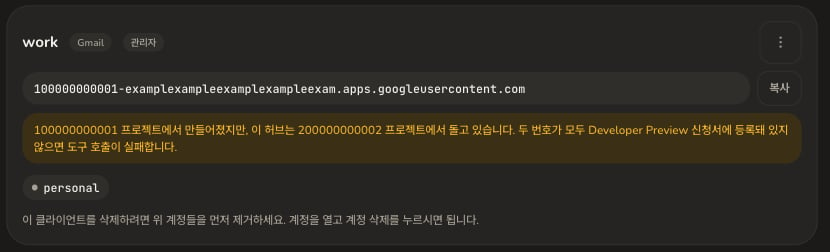 The warning on the Clients screen goes away on its own once no client is in the
wrong project.
**Google still remembers the old client.** The hub does not cancel the
permission you granted, so the old app stays listed under your Google
account's third-party access until you remove it there. It cannot do anything
once the hub has forgotten its secret, so this is tidying rather than
something you have to do.
## Next
* [Creating your OAuth client](/oauth-client), if you need to make one in the
right project
* [Developer Preview](/developer-preview), if it turns out you do want two
projects
The warning on the Clients screen goes away on its own once no client is in the
wrong project.
**Google still remembers the old client.** The hub does not cancel the
permission you granted, so the old app stays listed under your Google
account's third-party access until you remove it there. It cannot do anything
once the hub has forgotten its secret, so this is tidying rather than
something you have to do.
## Next
* [Creating your OAuth client](/oauth-client), if you need to make one in the
right project
* [Developer Preview](/developer-preview), if it turns out you do want two
projects