> ## Documentation Index
> Fetch the complete documentation index at: https://docs-hub.magicmealkits.com/llms.txt
> Use this file to discover all available pages before exploring further.
# Connection profiles
> A second URL to the hub that reaches only the accounts you pick, optionally read-only, for a client that should not see everything.
The hub's main URL reaches every account you have attached. A connection
profile is a second URL to the same hub that reaches only the accounts you
choose, and can leave out every tool that changes anything. Add it to Claude
as its own connector, and that connector sees a shorter tool list and no other
accounts.
Use one when a client should see less than everything:
* A connector for work that must not touch your personal mail.
* A read-only connector for a chat where Claude should look things up but
never send, edit or delete.
* A connector with only a Notion workspace on it, so the tool list stays short.
A profile does not add accounts or permissions. Whatever the profile shows,
the hub also checks every call against it, so a tool left off the list cannot
be called on that URL either.
A hub can hold **5** profiles. Delete one to make room for another.
## Make a profile
In the admin screen, open **Connection profiles** from the top menu. The
count beside the title says how many of the five are in use.
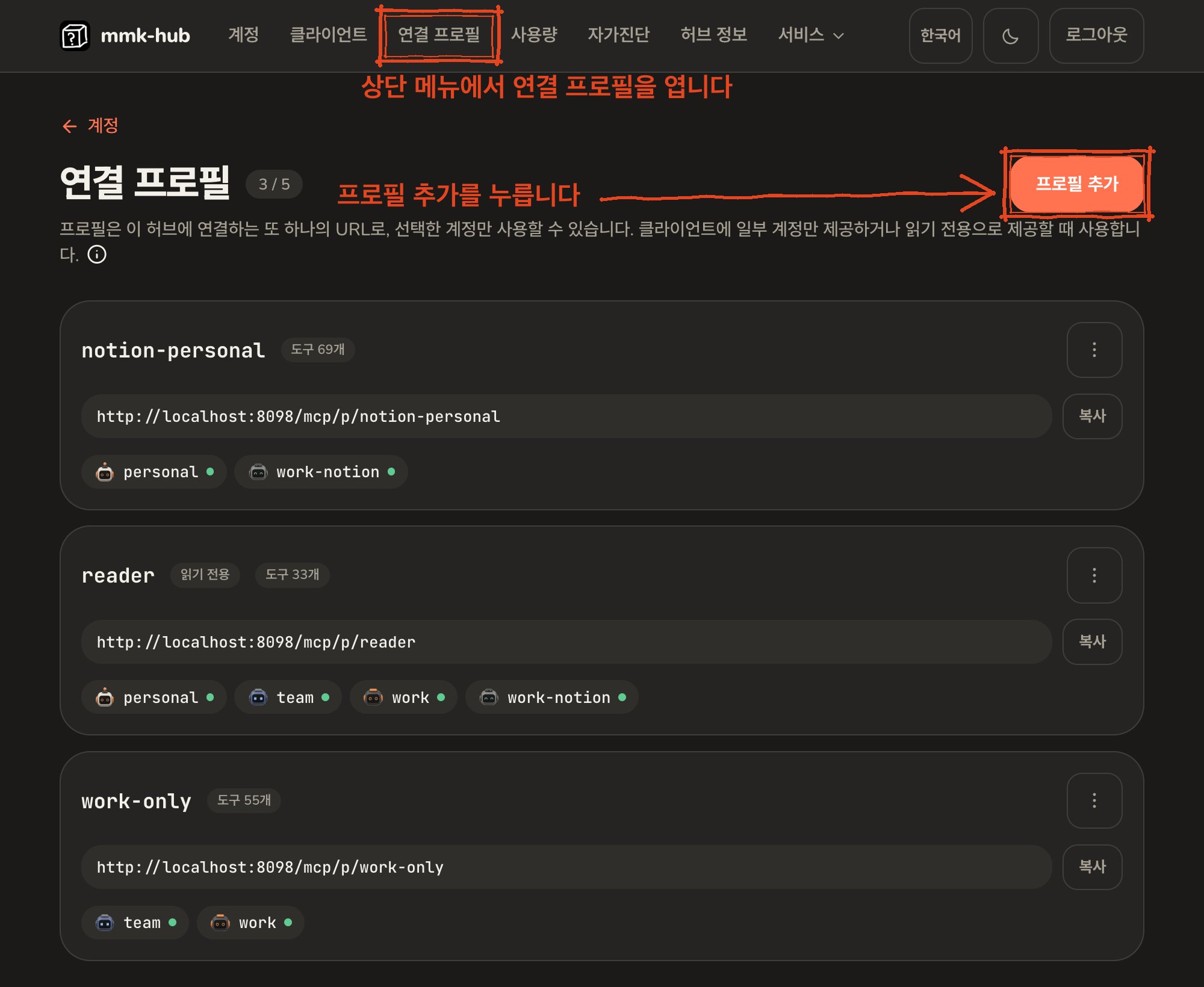 Press **Add profile**.
The **Name** becomes part of the URL: lowercase letters, digits, `-` and
`_` only. It cannot be renamed later, because the URL is what the
connector keeps.
Under **Accounts**, tick the accounts this URL should reach. At least
one. A connector on this profile reaches these and no others.
Tick **Read-only** to leave out every tool that can create, change, send
or delete anything. Only tools the provider marks as read-only stay.
Press **Add profile**.
The **Name** becomes part of the URL: lowercase letters, digits, `-` and
`_` only. It cannot be renamed later, because the URL is what the
connector keeps.
Under **Accounts**, tick the accounts this URL should reach. At least
one. A connector on this profile reaches these and no others.
Tick **Read-only** to leave out every tool that can create, change, send
or delete anything. Only tools the provider marks as read-only stay.
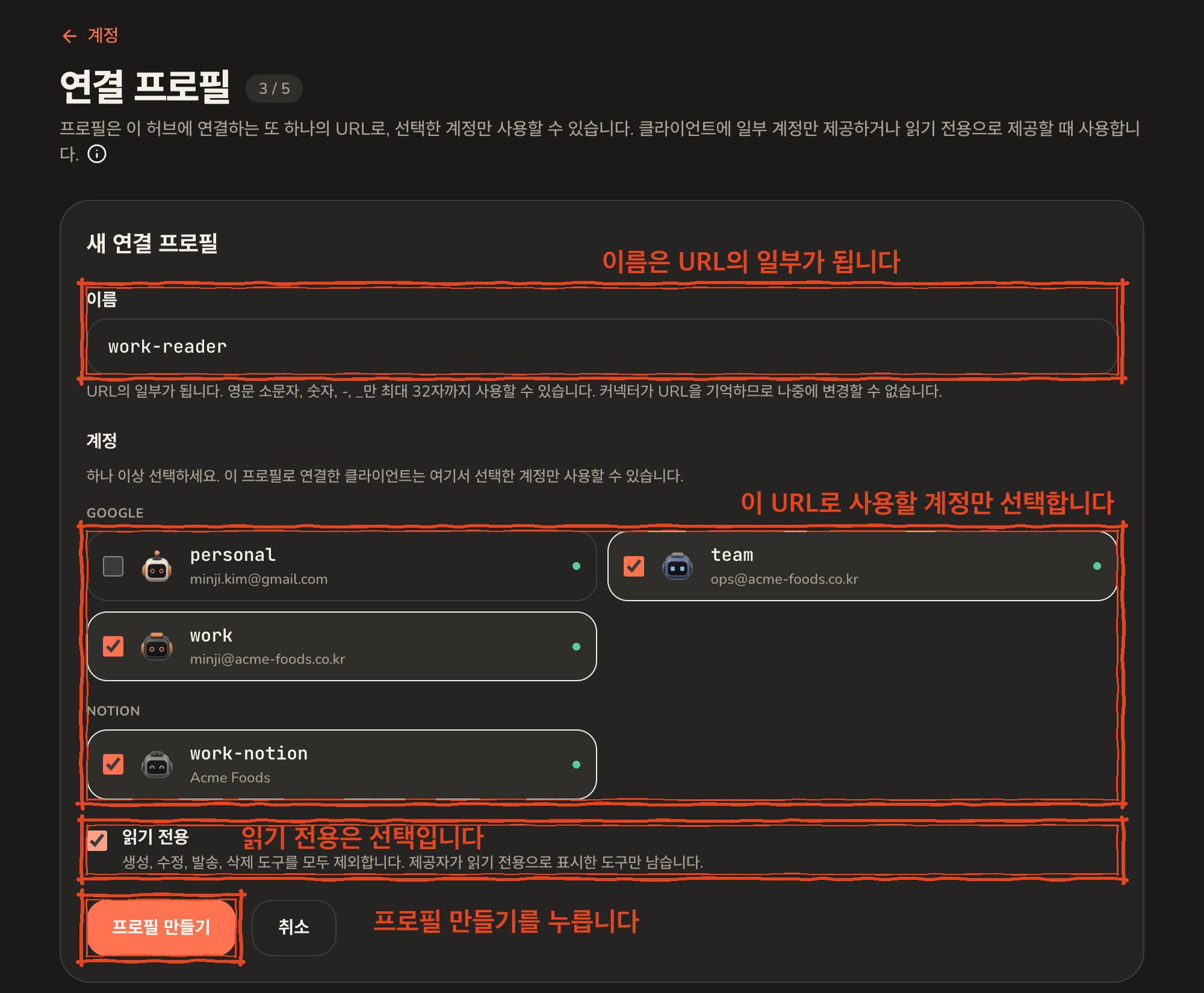 Press **Create profile**.
The new profile appears in the list with its URL, the accounts it reaches
and how many tools it offers. Press **Copy**.
Press **Create profile**.
The new profile appears in the list with its URL, the accounts it reaches
and how many tools it offers. Press **Copy**.
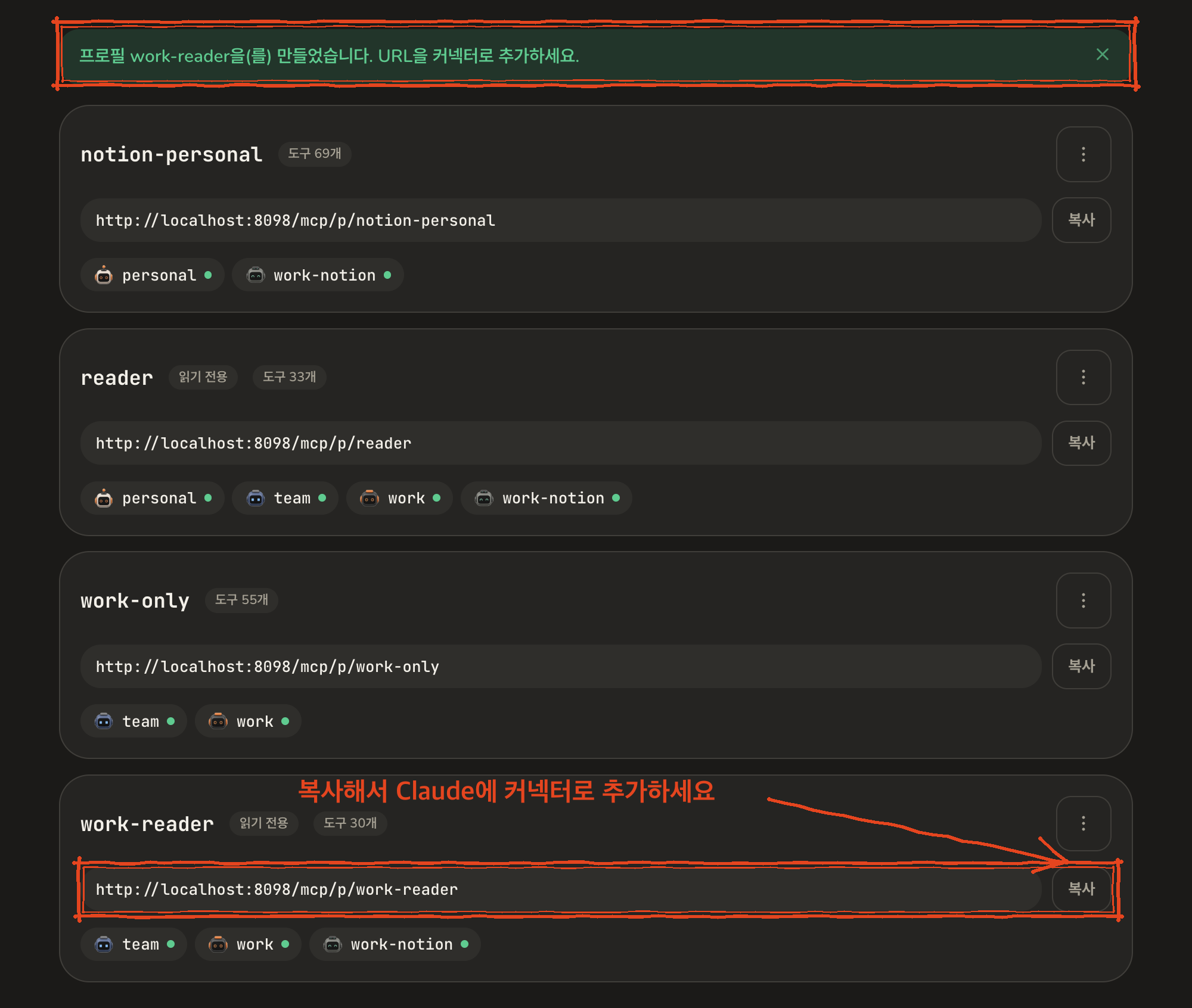 In Claude, add a custom connector with that URL, exactly as you did for
the main one in [Connect Claude](/quickstart#connect-claude). Give it a
name that says what it is for, `hub read-only` for example, so you can
tell the two apart in a chat.
A profile URL takes the same sign-in as the main URL. Approve it once on
the hub's sign-in page, the way you did the first time.
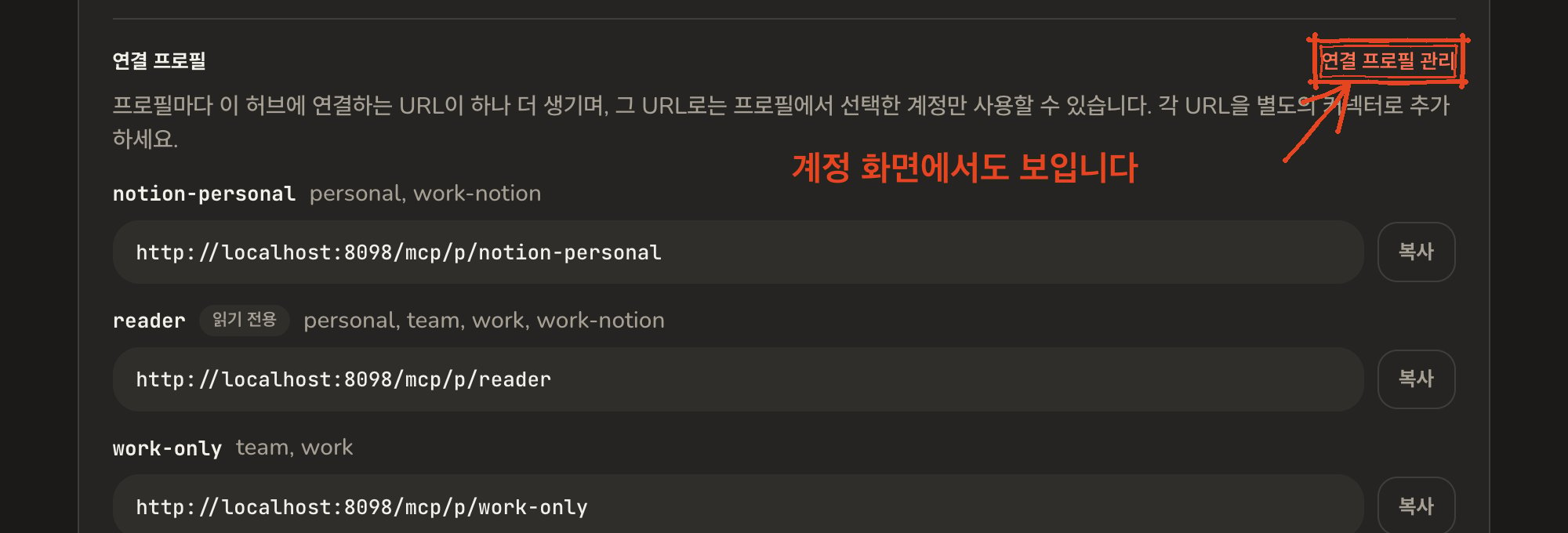
Every profile is also listed on the **Accounts** screen, in the assistant
connection section under the main URL, with a **Manage connection profiles**
link back to this screen.
In Claude, add a custom connector with that URL, exactly as you did for
the main one in [Connect Claude](/quickstart#connect-claude). Give it a
name that says what it is for, `hub read-only` for example, so you can
tell the two apart in a chat.
A profile URL takes the same sign-in as the main URL. Approve it once on
the hub's sign-in page, the way you did the first time.
Every profile is also listed on the **Accounts** screen, in the assistant
connection section under the main URL, with a **Manage connection profiles**
link back to this screen.
 ## Change or delete a profile
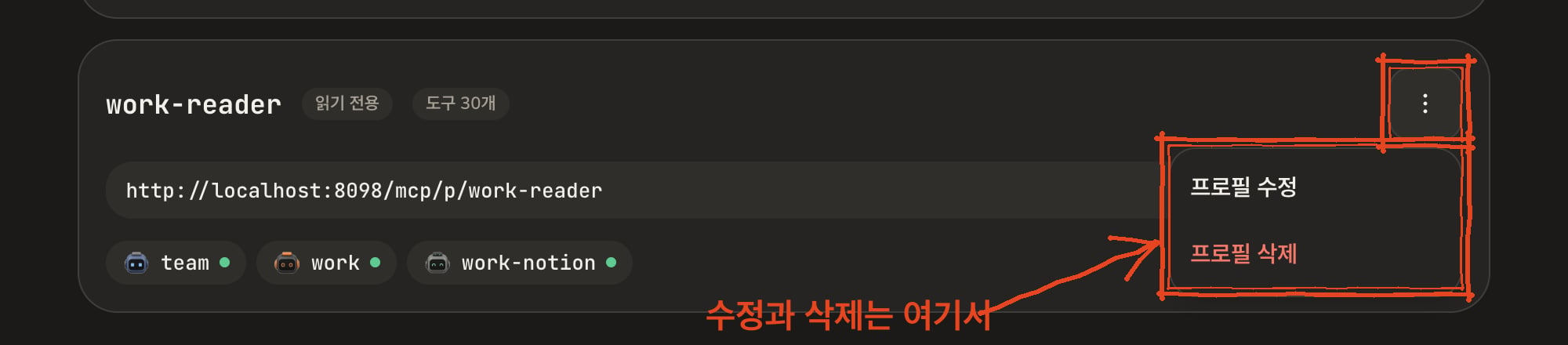
The menu at the top right of each profile has **Edit profile** and
**Delete profile**.
## Change or delete a profile
The menu at the top right of each profile has **Edit profile** and
**Delete profile**.
 Editing changes the accounts or the read-only setting. The name and the URL
stay, so connectors keep working; they see the change after their tool list
refreshes, see [refreshing Claude's tool list](/refresh-tools-list).
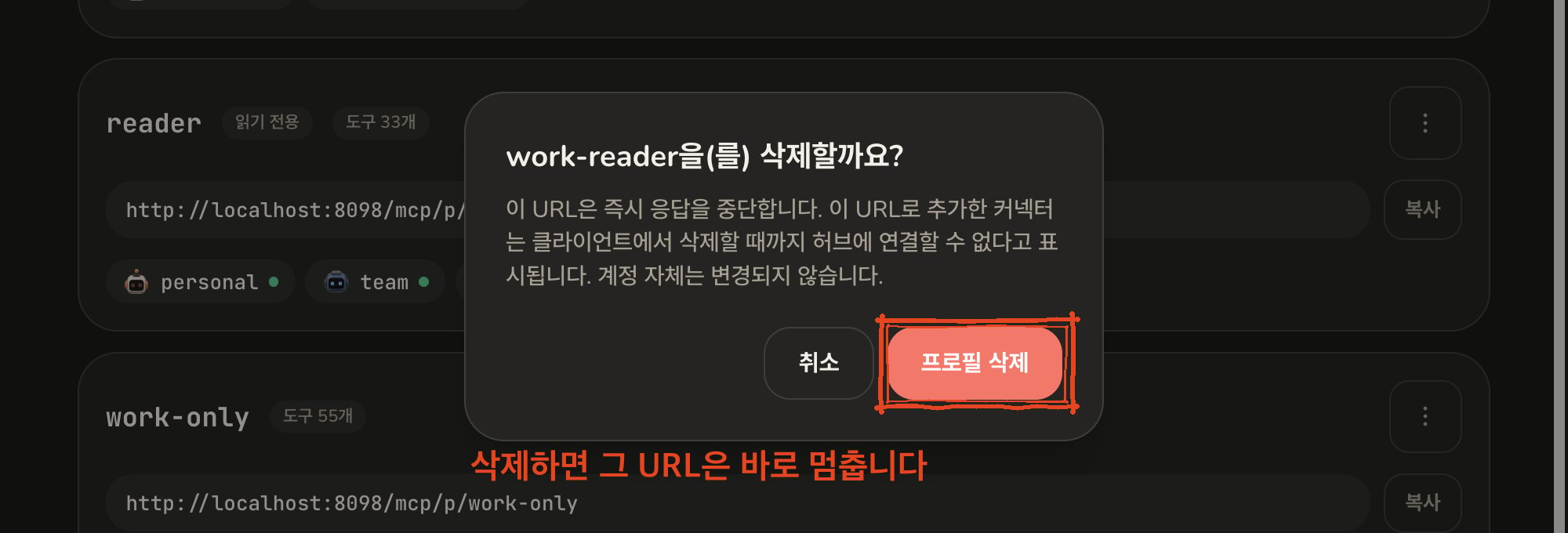
Deleting stops the URL right away. A connector added with that URL will say it
cannot reach your hub until you remove the connector from Claude. The accounts
themselves are not touched.
Editing changes the accounts or the read-only setting. The name and the URL
stay, so connectors keep working; they see the change after their tool list
refreshes, see [refreshing Claude's tool list](/refresh-tools-list).
Deleting stops the URL right away. A connector added with that URL will say it
cannot reach your hub until you remove the connector from Claude. The accounts
themselves are not touched.
 ## What Claude sees on a profile
The tool list on a profile URL is the main list with everything removed that
the chosen accounts do not provide, and on a read-only profile everything
that could change something. Each tool that takes an account offers only the
profile's accounts to choose from.
If an account on the profile is not connected, or its services are off, the
profile card says so: the account is listed as reaching no tool. A profile can
end up offering no tools at all, for example a read-only profile over an
account whose provider marks nothing read-only. The card says that too, and a
connector on that URL sees an empty list until it changes.
The hub's self-check reports how many URLs the hub answers on, how many of the
five profiles are in use, and one line per profile with its accounts and tool
count, so you can ask Claude to run diagnostics and read it back.
## Next
* [Accounts and clients](/accounts-and-clients)
* [Claude does not see a change you just made](/refresh-tools-list)
* [Troubleshooting](/troubleshooting)
## What Claude sees on a profile
The tool list on a profile URL is the main list with everything removed that
the chosen accounts do not provide, and on a read-only profile everything
that could change something. Each tool that takes an account offers only the
profile's accounts to choose from.
If an account on the profile is not connected, or its services are off, the
profile card says so: the account is listed as reaching no tool. A profile can
end up offering no tools at all, for example a read-only profile over an
account whose provider marks nothing read-only. The card says that too, and a
connector on that URL sees an empty list until it changes.
The hub's self-check reports how many URLs the hub answers on, how many of the
five profiles are in use, and one line per profile with its accounts and tool
count, so you can ask Claude to run diagnostics and read it back.
## Next
* [Accounts and clients](/accounts-and-clients)
* [Claude does not see a change you just made](/refresh-tools-list)
* [Troubleshooting](/troubleshooting)