> ## Documentation Index
> Fetch the complete documentation index at: https://docs-hub.magicmealkits.com/llms.txt
> Use this file to discover all available pages before exploring further.
# Connecting YouTube
> How to add YouTube to the hub so Claude can look up channels, videos, comments and what is trending, and analyse your own channel. Step by step, with a picture of each screen.
From v0.34.0 the hub connects YouTube. Once it is connected, Claude can look up
channels and videos, see what is trending, and analyse your own channel's views
and watch time.
YouTube is added separately from your Google accounts, but it signs in with
Google and uses the Google OAuth client you already registered. There is
nothing new to create.
For now the hub asks YouTube for **view access only**, so it cannot upload,
edit or delete anything yet. Support for that is planned, and this page will
say so when it arrives.
The pictures below show the Korean admin screen. The buttons are in the same
places in English.
## Add the account
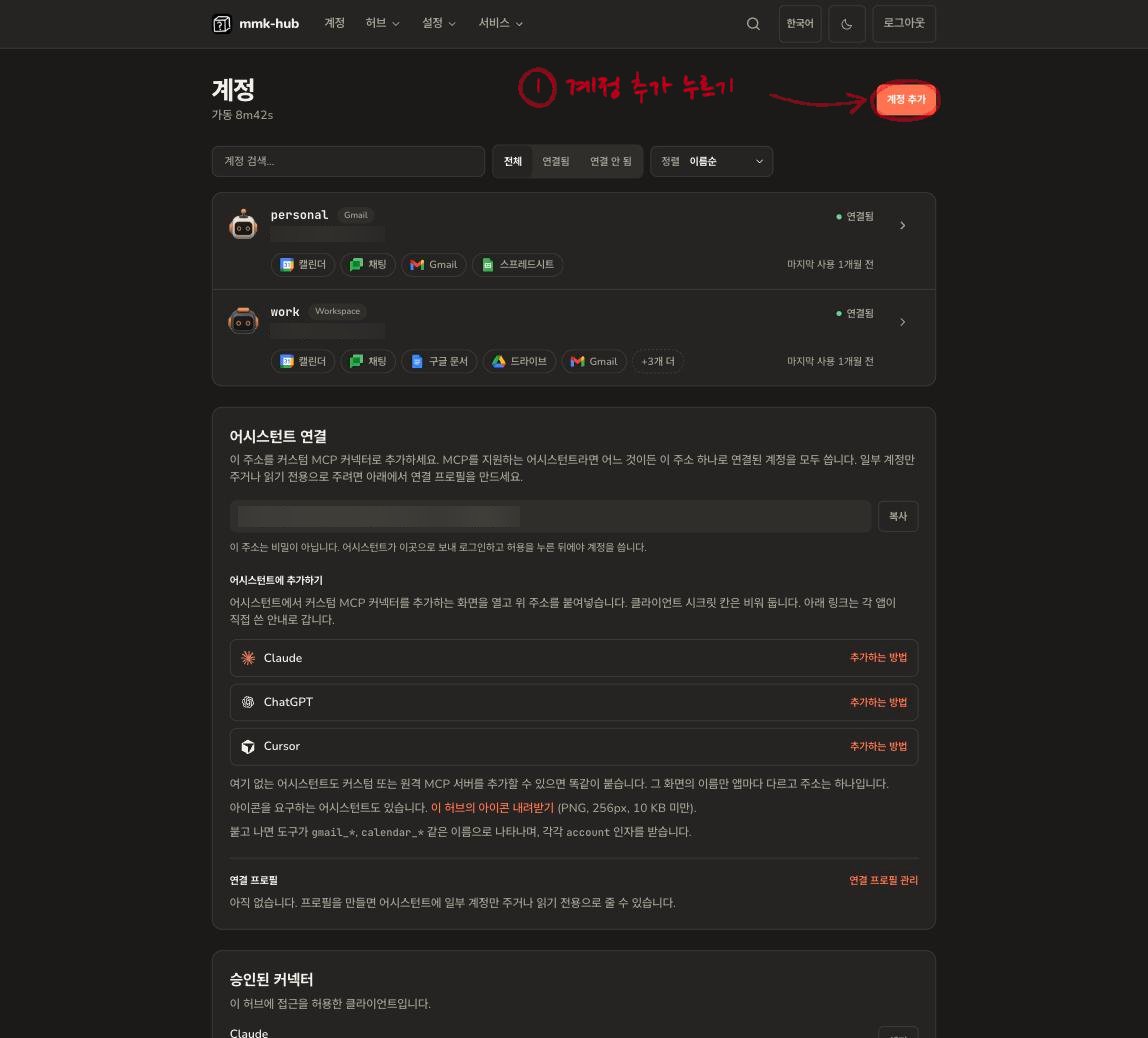
In the admin screen, open **Accounts** and press **Add account** at the top
right.
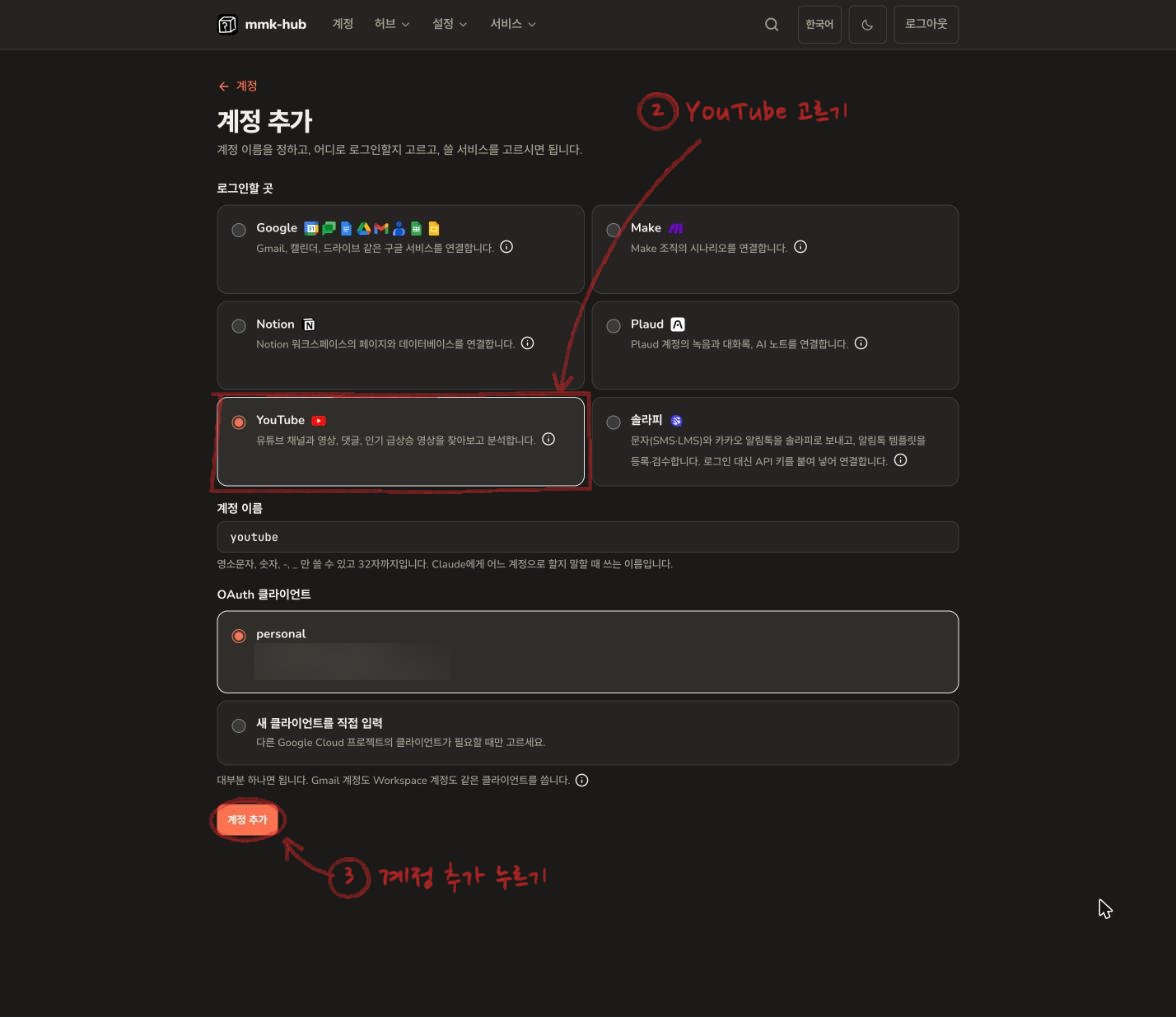
 Under **Signs in with**, press the circle next to **YouTube**. The account
name fills in as `youtube`, and **OAuth client** already has the one your
Google accounts use. Leave both as they are in most cases.
Press **Add account** at the bottom.
Under **Signs in with**, press the circle next to **YouTube**. The account
name fills in as `youtube`, and **OAuth client** already has the one your
Google accounts use. Leave both as they are in most cases.
Press **Add account** at the bottom.
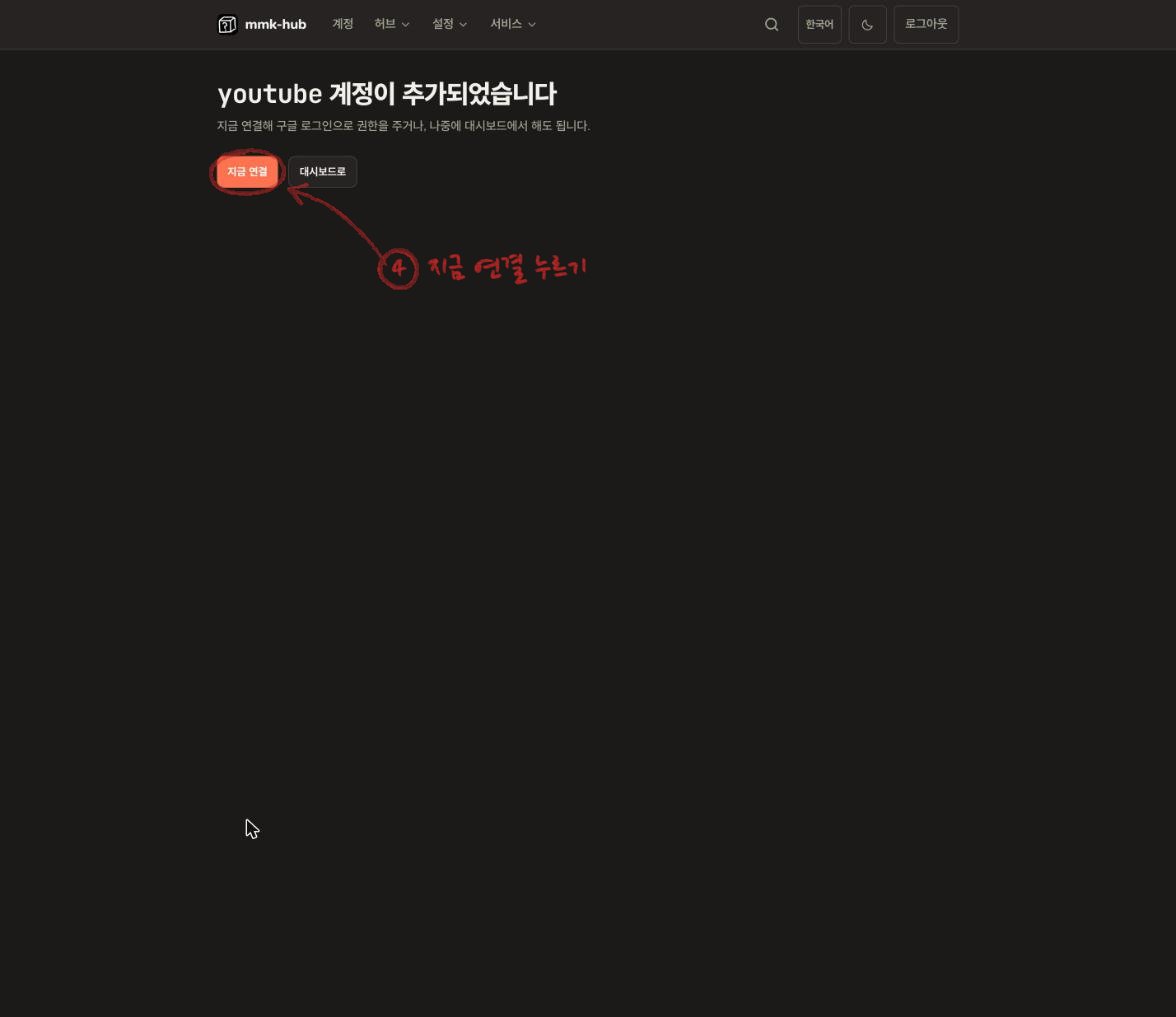
 When the screen says the account was added, press **Connect now**. Google's
sign-in page opens.
When the screen says the account was added, press **Connect now**. Google's
sign-in page opens.
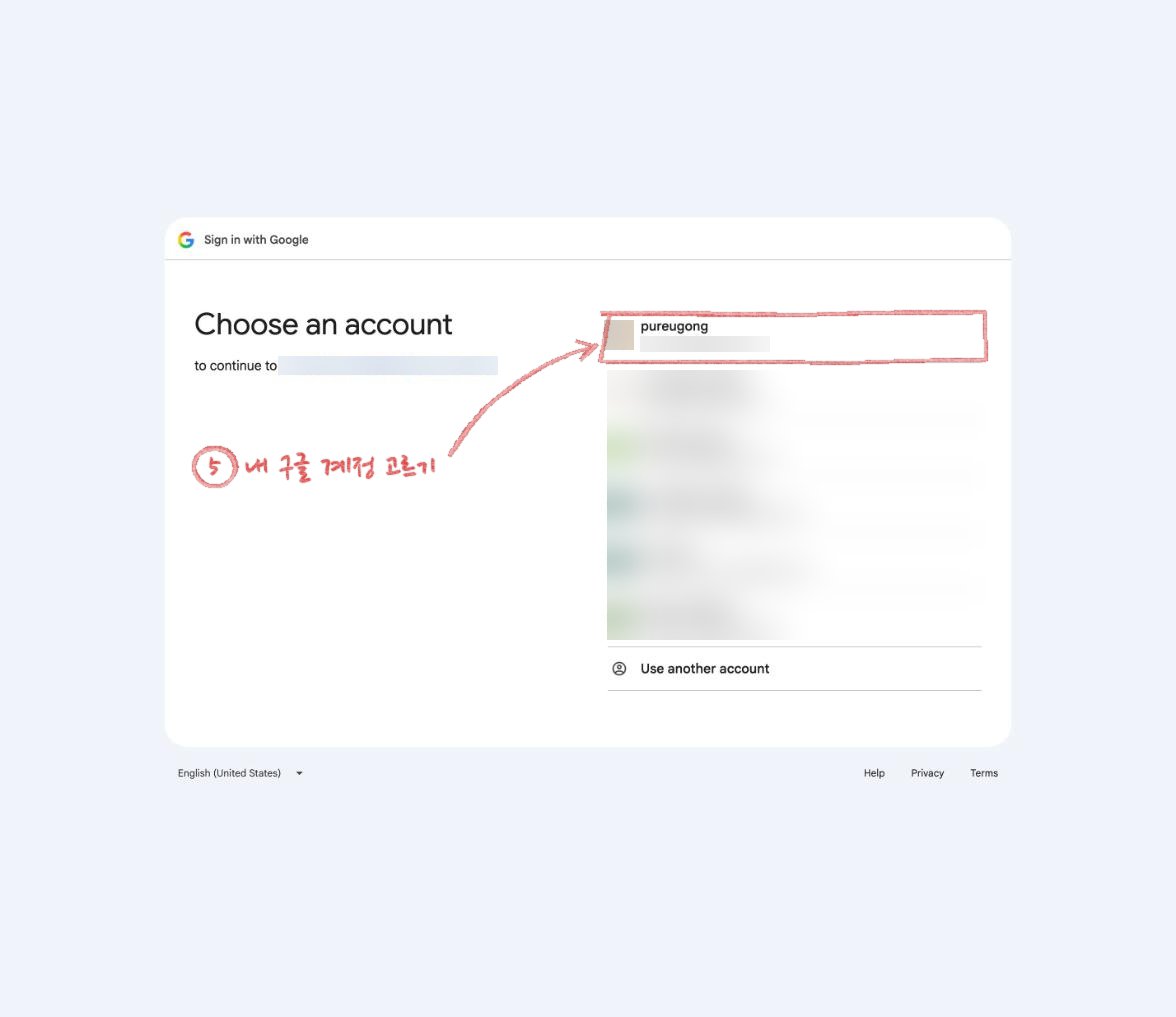
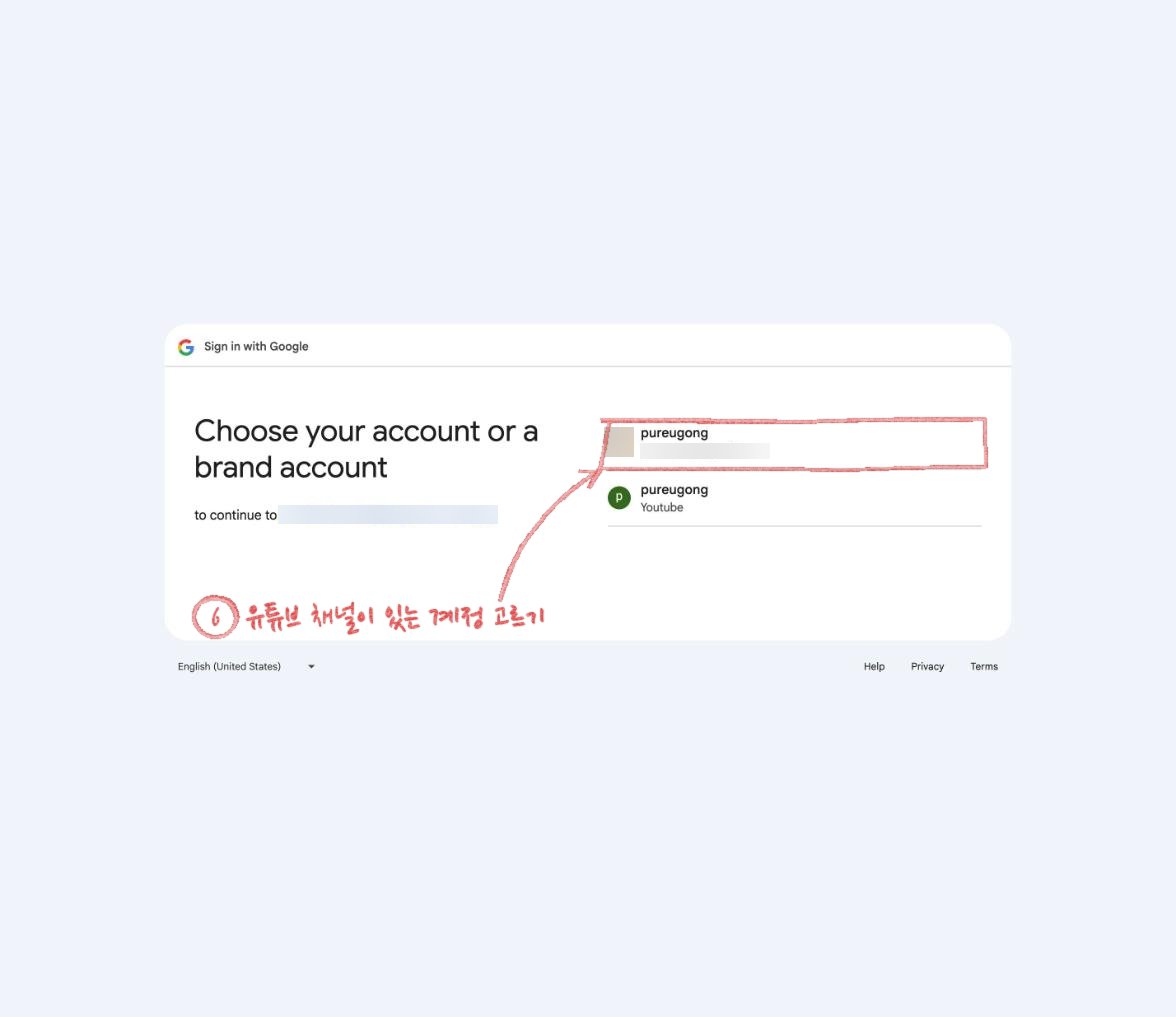
 Choose the Google account that owns your YouTube channel.
 If your Google account has a brand account under it, Google asks once more
which one to continue as. Choose the one that holds the YouTube channel you
want analysed. If the channel lives on a brand account, choose the brand
account, or your channel's analytics will look at the wrong one. If this
screen does not appear, skip it.
If your Google account has a brand account under it, Google asks once more
which one to continue as. Choose the one that holds the YouTube channel you
want analysed. If the channel lives on a brand account, choose the brand
account, or your channel's analytics will look at the wrong one. If this
screen does not appear, skip it.
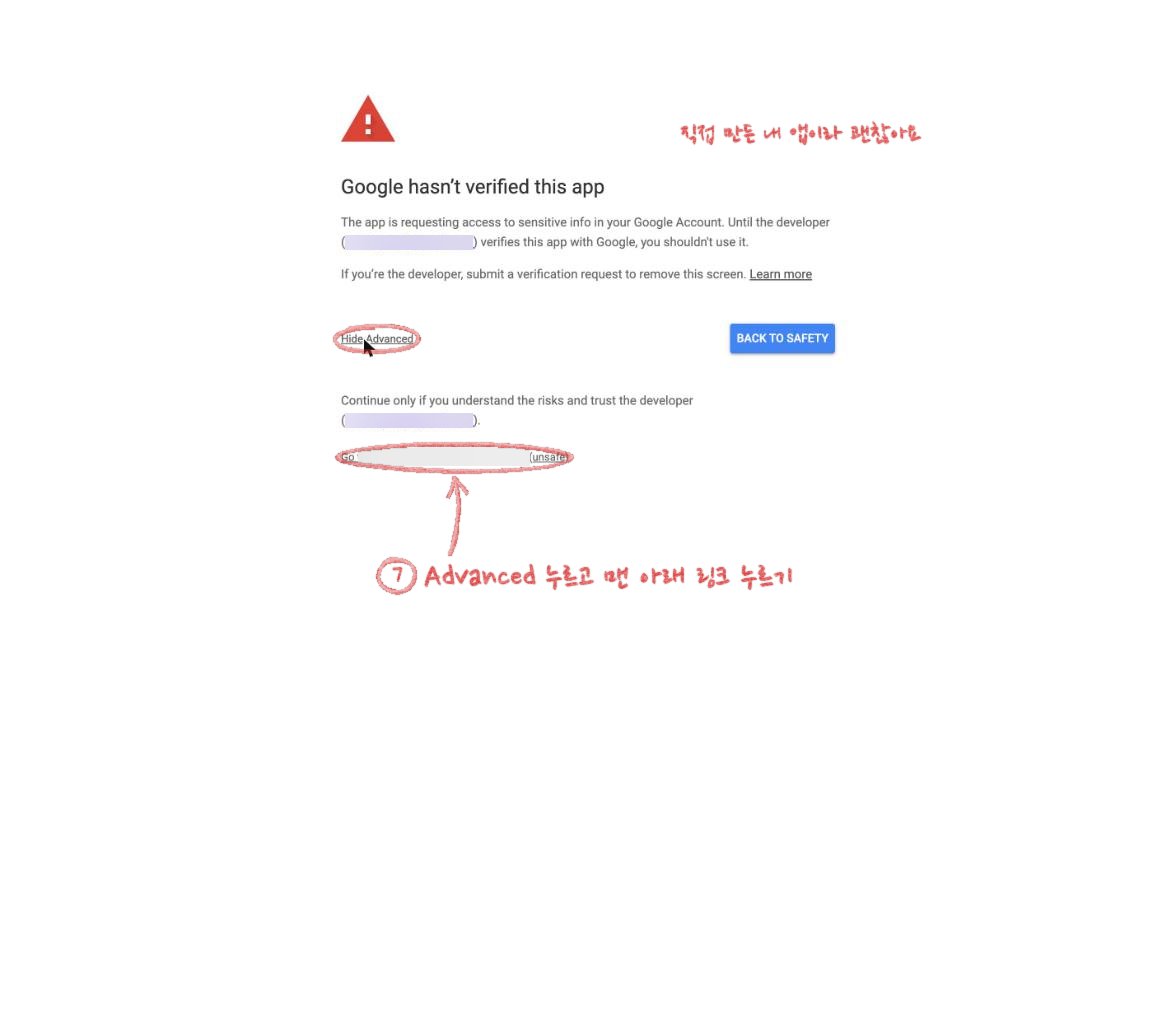
 Google warns that it has not verified this app. The app is the OAuth client
you made yourself, so this is expected. Press **Advanced**, then the link at
the bottom that starts with **Go to**.
Google warns that it has not verified this app. The app is the OAuth client
you made yourself, so this is expected. Press **Advanced**, then the link at
the bottom that starts with **Go to**.
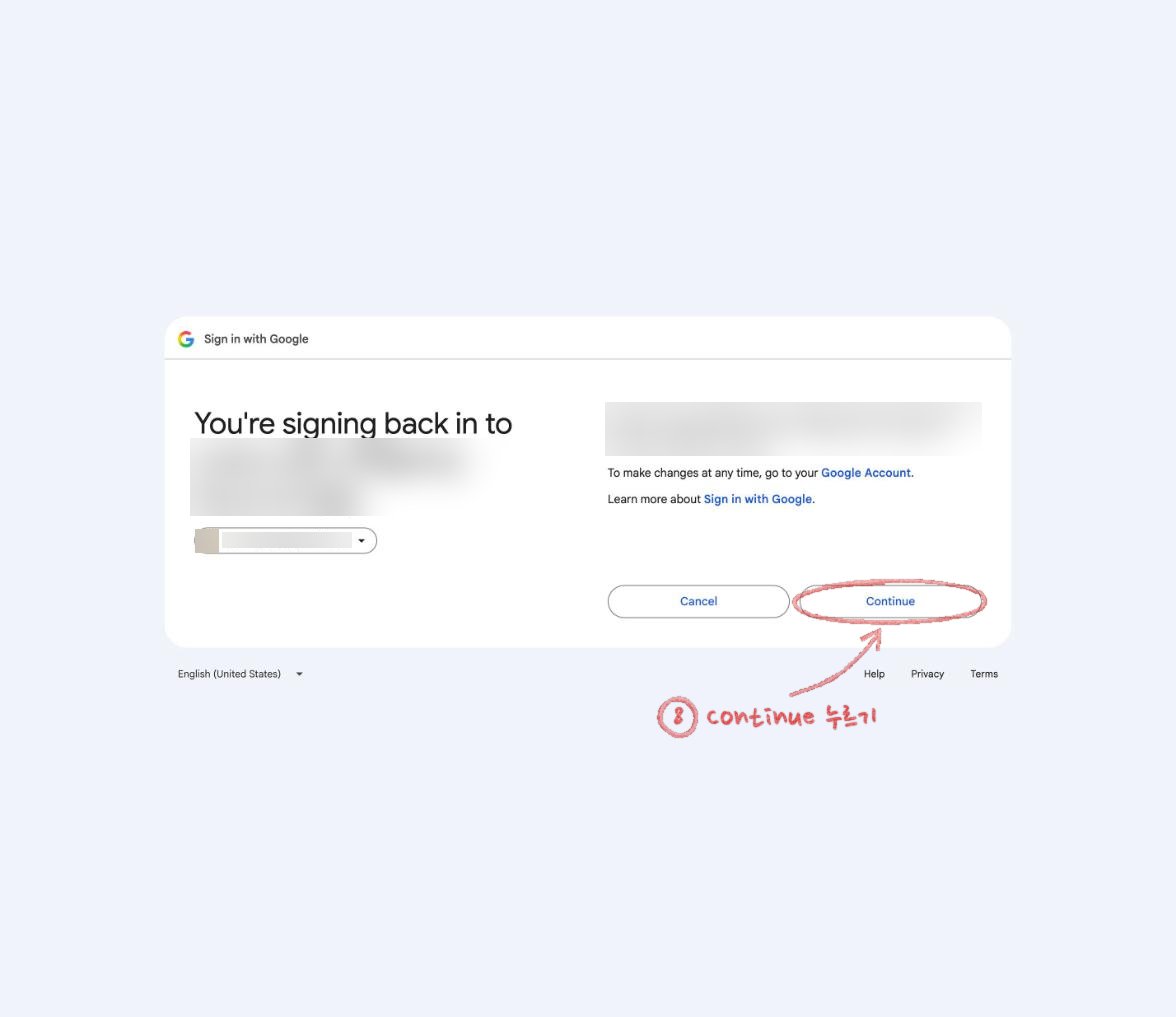
 On the screen saying you are signing back in, press **Continue**.
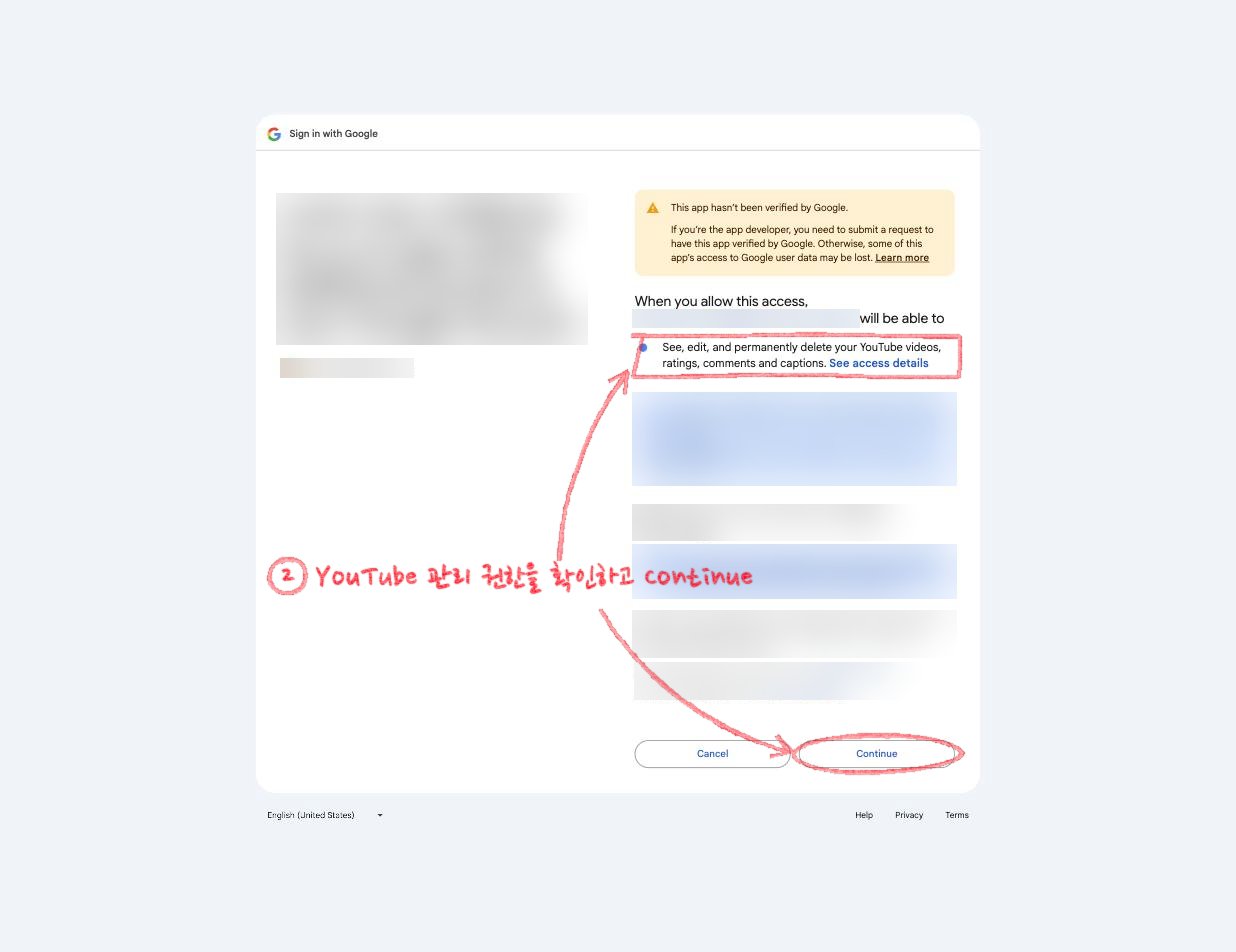
 This screen shows what the hub will be allowed to do. Press **Continue**
and you are back in the hub.
This screen shows what the hub will be allowed to do. Press **Continue**
and you are back in the hub.
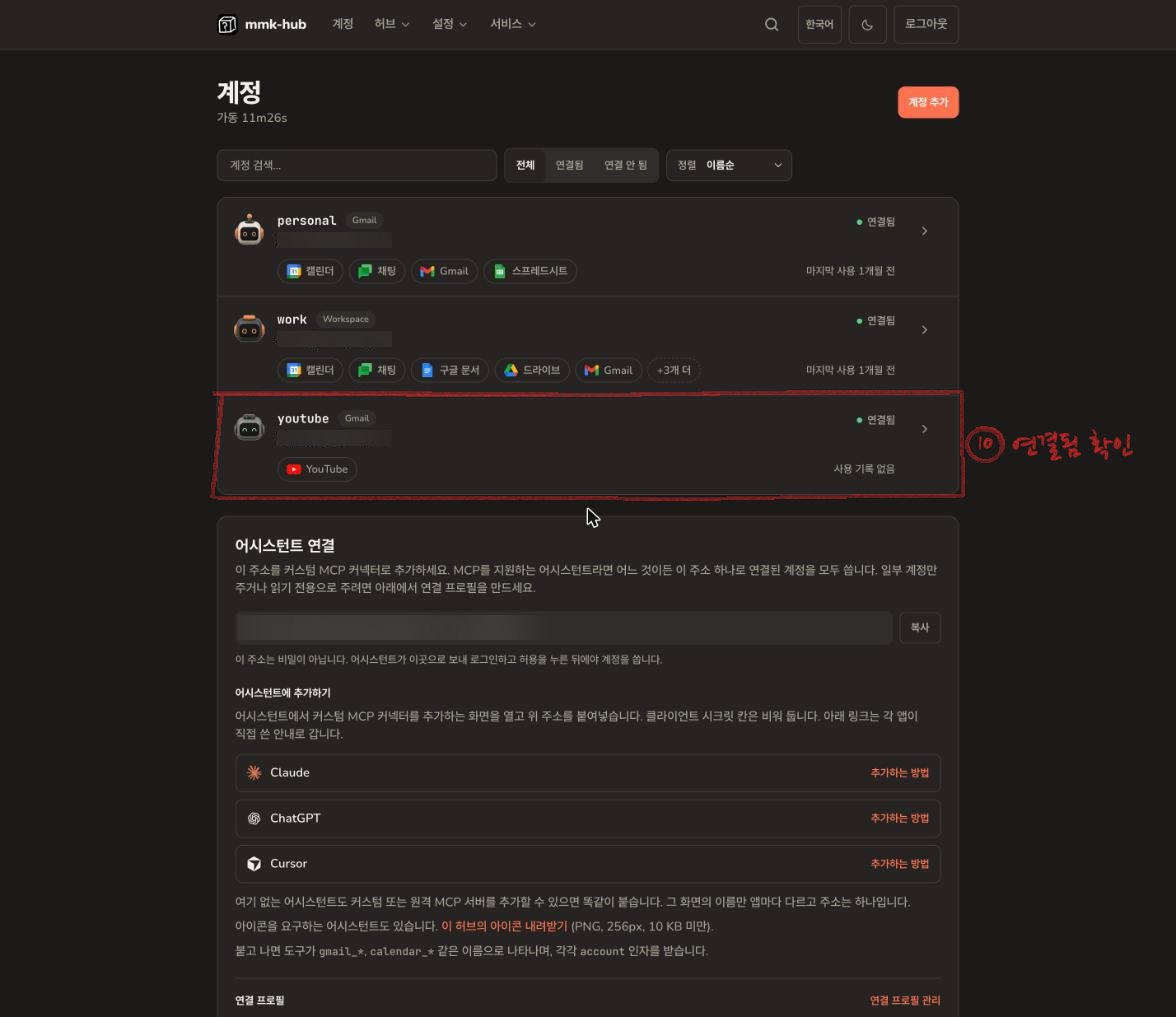
 You are done when the `youtube` account shows as **connected** on the
**Accounts** screen.
You are done when the `youtube` account shows as **connected** on the
**Accounts** screen.
 Claude keeps its own copy of the tool list and does not notice a new
account by itself. [Refresh Claude's tool list](/refresh-tools-list), then
ask in a new conversation.
## Reading comments as well
To read comments through a sign-in, YouTube demands permission to edit and
delete your videos and comments too. The hub does not take that permission.
It reads comments with an API key for public data instead. Without a key,
everything but comments works.
To add comments, create an API key in the Google Cloud console, restrict it to
the YouTube Data API v3, then open the `youtube` account in the admin screen and
paste it under **YouTube API key (optional)**.
## When it says YouTube is turned off
If the YouTube API is off in the Google Cloud project that holds your OAuth
client, Claude says so and passes along a link to turn it on. Open the link,
turn it on, and ask again after a few minutes. It is free, and nothing else
changes.
Claude keeps its own copy of the tool list and does not notice a new
account by itself. [Refresh Claude's tool list](/refresh-tools-list), then
ask in a new conversation.
## Reading comments as well
To read comments through a sign-in, YouTube demands permission to edit and
delete your videos and comments too. The hub does not take that permission.
It reads comments with an API key for public data instead. Without a key,
everything but comments works.
To add comments, create an API key in the Google Cloud console, restrict it to
the YouTube Data API v3, then open the `youtube` account in the admin screen and
paste it under **YouTube API key (optional)**.
## When it says YouTube is turned off
If the YouTube API is off in the Google Cloud project that holds your OAuth
client, Claude says so and passes along a link to turn it on. Open the link,
turn it on, and ask again after a few minutes. It is free, and nothing else
changes.