> ## Documentation Index
> Fetch the complete documentation index at: https://docs-hub.magicmealkits.com/llms.txt
> Use this file to discover all available pages before exploring further.
# Connecting a Notion workspace
> How to add a Notion workspace to the hub so Claude can search, read and edit its pages and databases, and why to do it from a computer rather than a phone.
From v0.22.0 the hub connects Notion as well as Google. A Notion workspace is
added the same way a Google account is, under **Accounts**, and once it is
connected Claude can search, read and edit the pages and databases in it.
There is less to do than for a Google account. No OAuth client to create, no
Developer Preview to apply for, and nothing to turn on in Google Cloud. Notion
signs the hub in itself.
Do this from a computer. On a phone with the Notion app installed, pressing
**Connect now** opens the app instead of Notion's sign-in page, and the
connection never finishes. See [If the Notion app opens instead](#if-the-notion-app-opens-instead).
## Add the account
In the admin screen, open **Accounts**, then **Add account**.
Under **Signs in with**, choose **Notion**. The client fields a Google
account shows disappear, because there is nothing to fill in.
Give the account a short name, the one you will say to Claude when you
want it to work in that workspace: `notion`, `work-notion`. Lowercase
letters, numbers, `-` and `_` only.
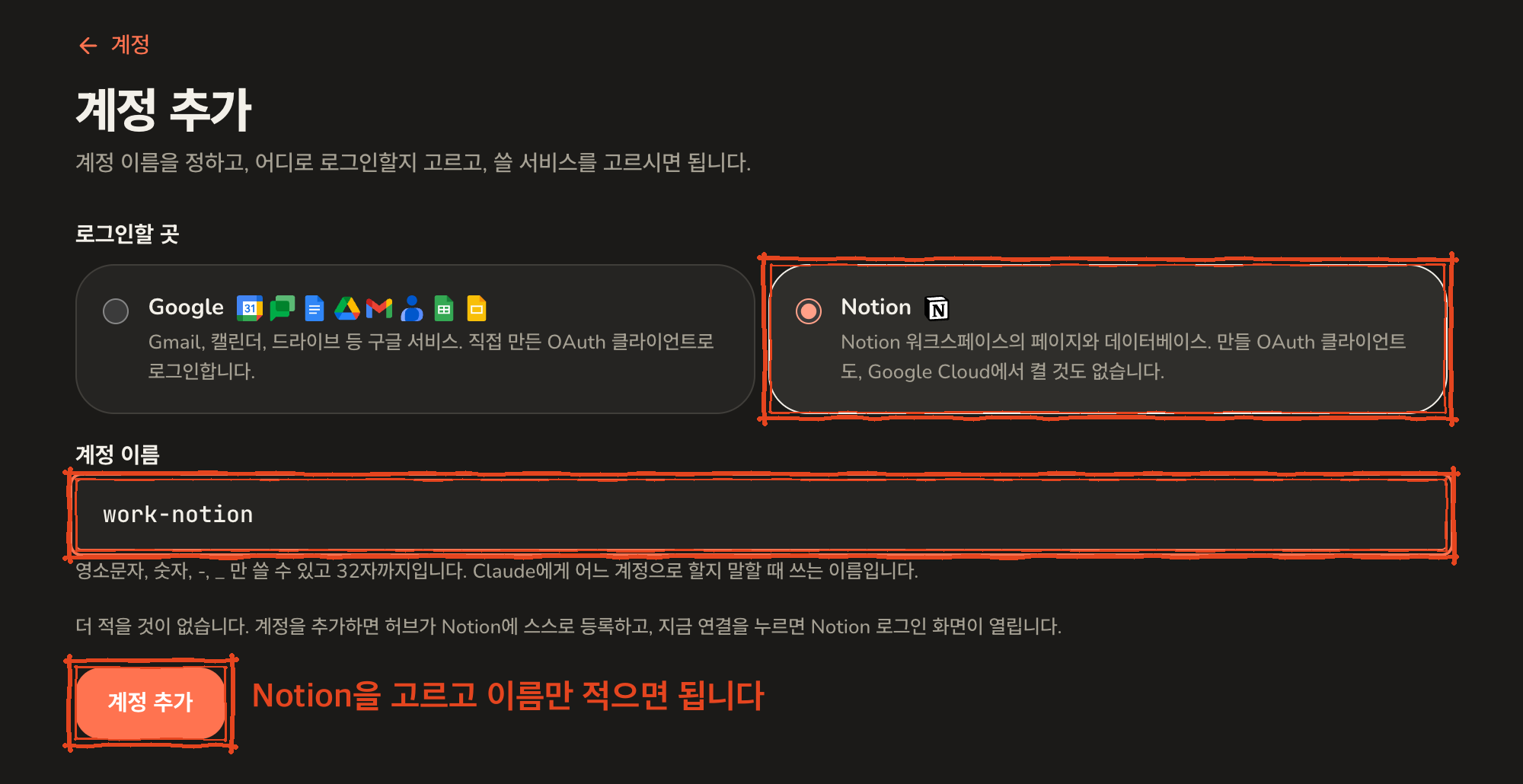 Press **Add account**. The hub registers itself with Notion, which can
take a few seconds.
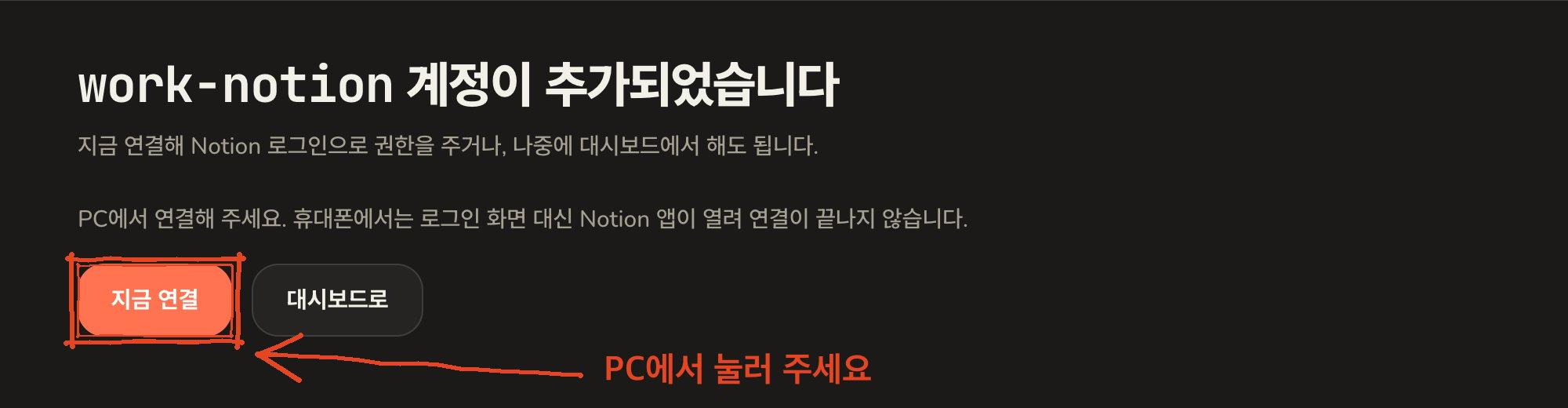
The screen says the account has been added. **From a computer**, press
**Connect now**.
Press **Add account**. The hub registers itself with Notion, which can
take a few seconds.
The screen says the account has been added. **From a computer**, press
**Connect now**.
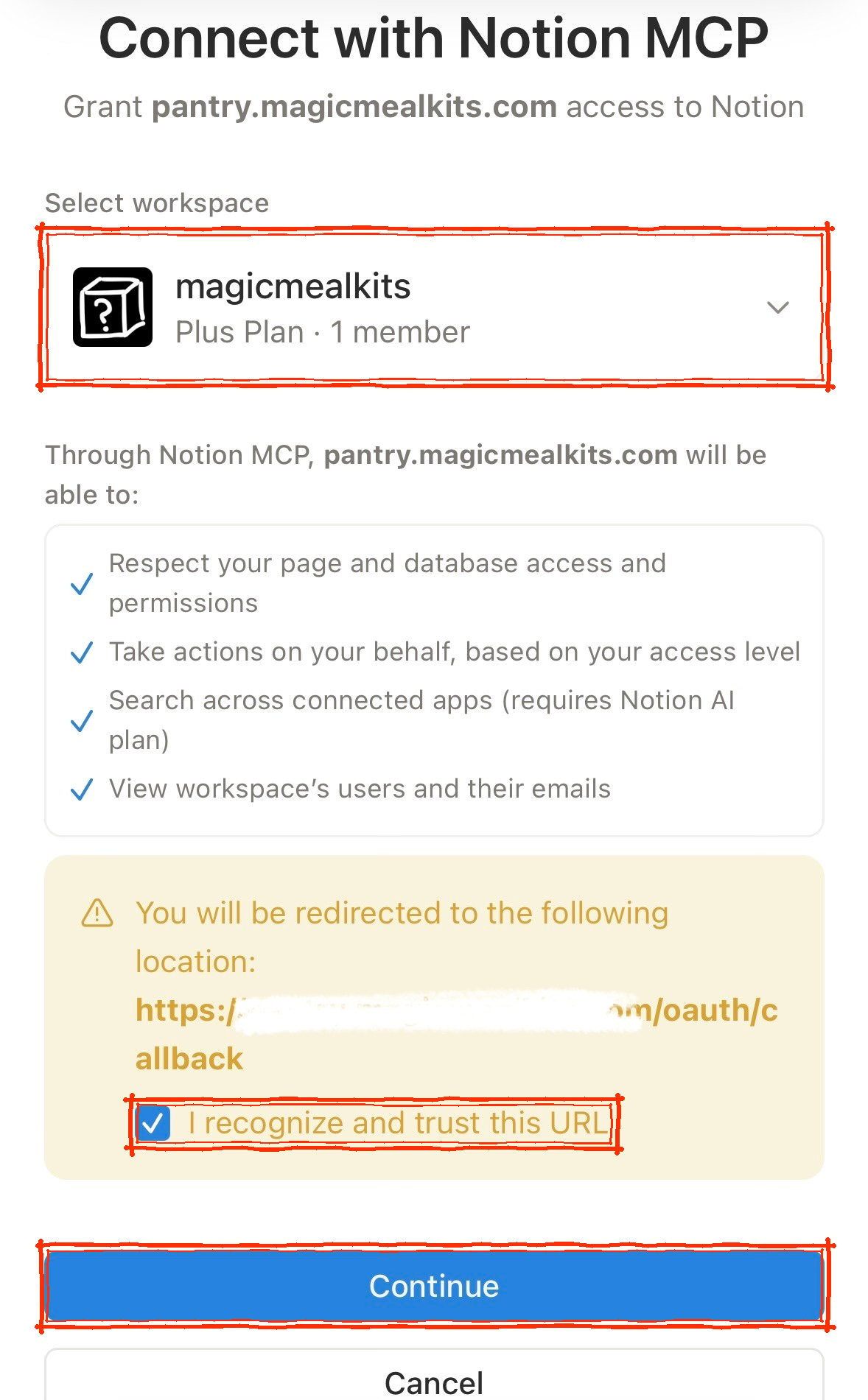
 You land on Notion's own sign-in page. Sign in first if you are not
already.
Under **Select workspace**, pick the workspace you want the hub to reach,
tick **I recognize and trust this URL** in the yellow notice, and press
**Continue**. The address in the notice is your own hub's, so it is safe
to trust.
You land on Notion's own sign-in page. Sign in first if you are not
already.
Under **Select workspace**, pick the workspace you want the hub to reach,
tick **I recognize and trust this URL** in the yellow notice, and press
**Continue**. The address in the notice is your own hub's, so it is safe
to trust.
 Notion returns you to the hub with the account marked as **connected**,
and the workspace's name shown beside it.
Claude keeps its own copy of the tool list and does not notice the new
account on its own. See [refreshing Claude's tool list](/refresh-tools-list),
then ask in a new chat.
## Several workspaces
Each Notion workspace is its own account on the hub, exactly like a second
Google account. Add another, choose Notion again, and pick a different
workspace on Notion's page. The workspace name shown on each account is how
you tell them apart, and the account name is what you say to Claude.
## If the Notion app opens instead
On a phone or tablet with the Notion app installed, the link Notion uses for
its sign-in page is one the app claims for itself. Pressing **Connect now** opens
the app, which has no idea what you were doing, and the hub never hears back.
Nothing is broken and nothing needs undoing: the account simply stays
unconnected until the sign-in page is actually shown.
The reliable fix is to open the admin screen on a computer and press
**Connect** there. The account page says so as a reminder. If a computer is
out of reach, opening the admin screen in a browser that is not allowed to
hand links to the Notion app sometimes works, but which browsers and phones
allow that changes, so the docs make no promise about it.
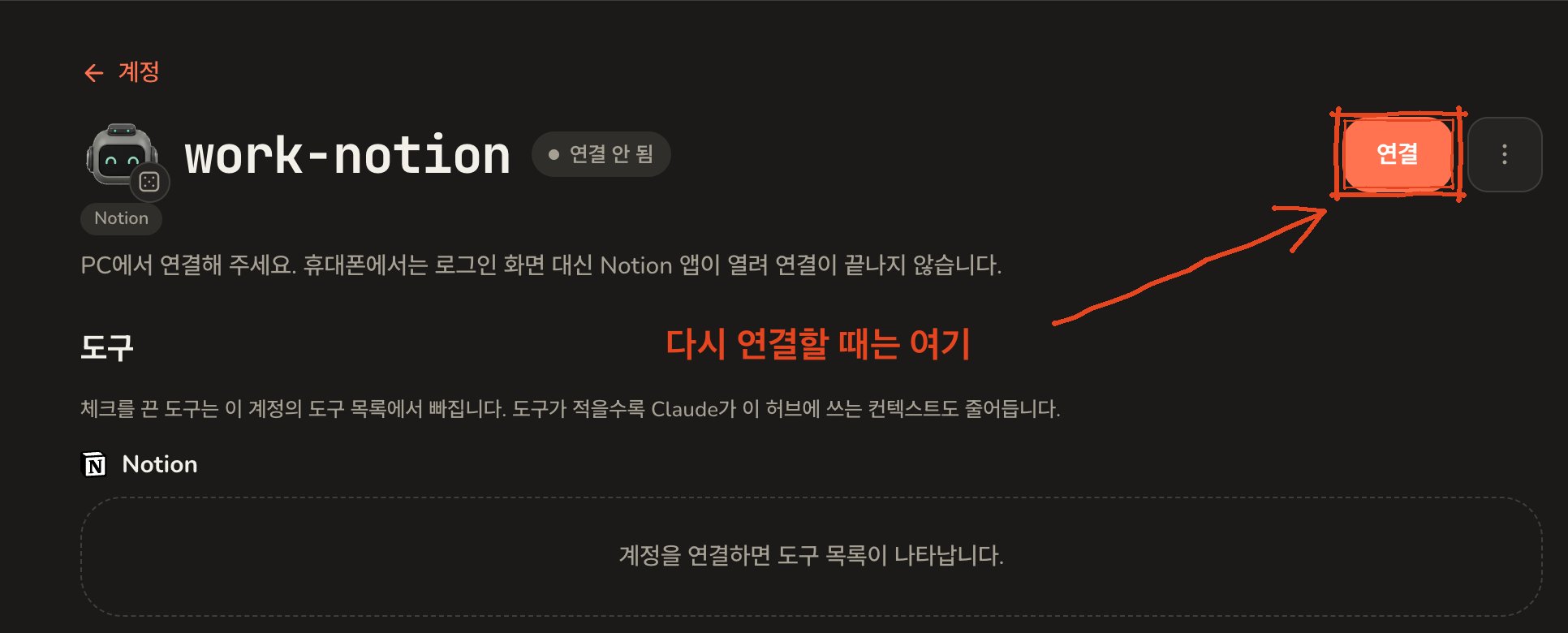
## When it needs reconnecting
Notion can end a connection on its side, for example after a long stretch
without use, or if you remove the hub from the workspace's connections in
Notion's settings. The account is then marked as **reconnect required** on
the hub. **Reconnect** at the top right of its page, pressed from a computer,
goes through the same sign-in as above. An account that has never been
connected shows **Connect** in the same place.
Notion returns you to the hub with the account marked as **connected**,
and the workspace's name shown beside it.
Claude keeps its own copy of the tool list and does not notice the new
account on its own. See [refreshing Claude's tool list](/refresh-tools-list),
then ask in a new chat.
## Several workspaces
Each Notion workspace is its own account on the hub, exactly like a second
Google account. Add another, choose Notion again, and pick a different
workspace on Notion's page. The workspace name shown on each account is how
you tell them apart, and the account name is what you say to Claude.
## If the Notion app opens instead
On a phone or tablet with the Notion app installed, the link Notion uses for
its sign-in page is one the app claims for itself. Pressing **Connect now** opens
the app, which has no idea what you were doing, and the hub never hears back.
Nothing is broken and nothing needs undoing: the account simply stays
unconnected until the sign-in page is actually shown.
The reliable fix is to open the admin screen on a computer and press
**Connect** there. The account page says so as a reminder. If a computer is
out of reach, opening the admin screen in a browser that is not allowed to
hand links to the Notion app sometimes works, but which browsers and phones
allow that changes, so the docs make no promise about it.
## When it needs reconnecting
Notion can end a connection on its side, for example after a long stretch
without use, or if you remove the hub from the workspace's connections in
Notion's settings. The account is then marked as **reconnect required** on
the hub. **Reconnect** at the top right of its page, pressed from a computer,
goes through the same sign-in as above. An account that has never been
connected shows **Connect** in the same place.
 Diagnostics names the account when this is the reason a tool stopped
offering it.
## Next
* [Accounts and clients](/accounts-and-clients)
* [Claude does not see a change you just made](/refresh-tools-list)
* [Troubleshooting](/troubleshooting)
Diagnostics names the account when this is the reason a tool stopped
offering it.
## Next
* [Accounts and clients](/accounts-and-clients)
* [Claude does not see a change you just made](/refresh-tools-list)
* [Troubleshooting](/troubleshooting)