> ## Documentation Index
> Fetch the complete documentation index at: https://docs-hub.magicmealkits.com/llms.txt
> Use this file to discover all available pages before exploring further.
# Command-line tool: mmkhub (beta)
> Install, sign in to and use mmkhub, the command-line tool for your hub's tools in a terminal or an AI agent. It is in beta and the installers are coming soon.
**Beta, coming soon.** mmkhub is in beta and its installers are not published
yet. Once they are, the install commands on this page work as written. The
[release notes](/release-notes) will say when.
## Overview
**mmkhub** uses the tools your hub has connected, such as Gmail, Calendar, Drive
and YouTube, from a terminal. People and AI agents (Claude Code, Codex and others)
use the same program.
* **Your hub's tools become commands.** Connect a service to your hub and commands
such as `mmkhub gmail ...` and `mmkhub youtube ...` appear, with nothing more to install.
* **Large files go straight to Google.** Videos and attachments never pass through the hub.
* **Built for AI agents.** Run by an agent, it answers in JSON and will not run a
command that cannot be undone without the user's confirmation.
* **Signs in through your hub.** There are no API keys to create.
This is not the Magic Meal Kits CLI (`mmk`). The two can be installed side by
side without affecting each other.
## Installation
### Let your AI install it
The easiest way. Replace `https://your-hub-address` with your hub's address and
paste this into an AI agent such as Claude Code or Codex. It installs mmkhub and
shows you a sign-in link; you approve it in your hub.
```text theme={null}
Install mmkhub (the Magic Meal Kits Hub command-line tool) and connect it to my hub at https://your-hub-address.
1. On macOS or Linux run in a terminal: curl -fsSL https://github.com/pureugong/mmkhub-releases/releases/latest/download/install.sh | sh
On Windows run in PowerShell: irm https://github.com/pureugong/mmkhub-releases/releases/latest/download/install.ps1 | iex
2. Run mmkhub auth login --device --start --hub https://your-hub-address and show me the link and code.
When I say I approved it, run mmkhub auth login --device --resume.
3. Run mmkhub skills install, then check the connection with mmkhub auth status.
Never print a token.
```
### Install it yourself
No administrator rights are needed. The install script checks the download's
SHA256 checksum and installs nothing if it does not match.
On macOS, search for **Terminal** in Spotlight (⌘ + Space).
```bash theme={null}
curl -fsSL https://github.com/pureugong/mmkhub-releases/releases/latest/download/install.sh | sh
```
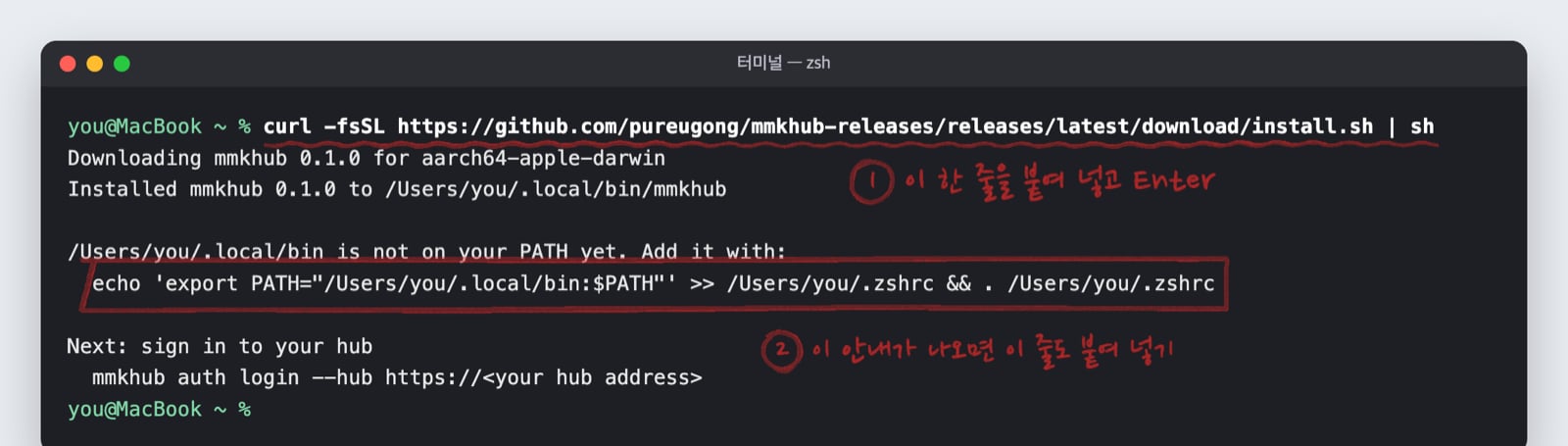 If a PATH notice appears, paste the line under it that starts with `echo`
as well. You only do this once. mmkhub goes in `~/.local/bin`.
Replace `https://your-hub-address` with your hub's address.
```bash theme={null}
mmkhub auth login --device --hub https://your-hub-address
```
If a PATH notice appears, paste the line under it that starts with `echo`
as well. You only do this once. mmkhub goes in `~/.local/bin`.
Replace `https://your-hub-address` with your hub's address.
```bash theme={null}
mmkhub auth login --device --hub https://your-hub-address
```

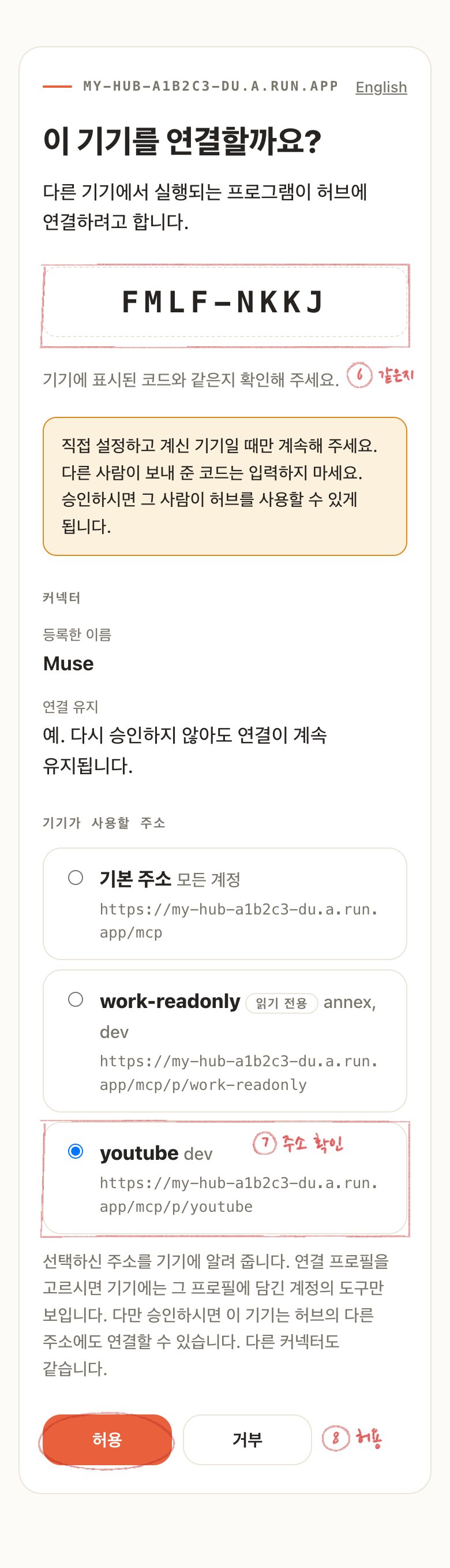 Open the link, sign in to your hub, check that the code matches the one in
the terminal and press **Allow**. The terminal carries on by itself.
```bash theme={null}
mmkhub auth status
mmkhub skills install
```
Open the link, sign in to your hub, check that the code matches the one in
the terminal and press **Allow**. The terminal carries on by itself.
```bash theme={null}
mmkhub auth status
mmkhub skills install
```
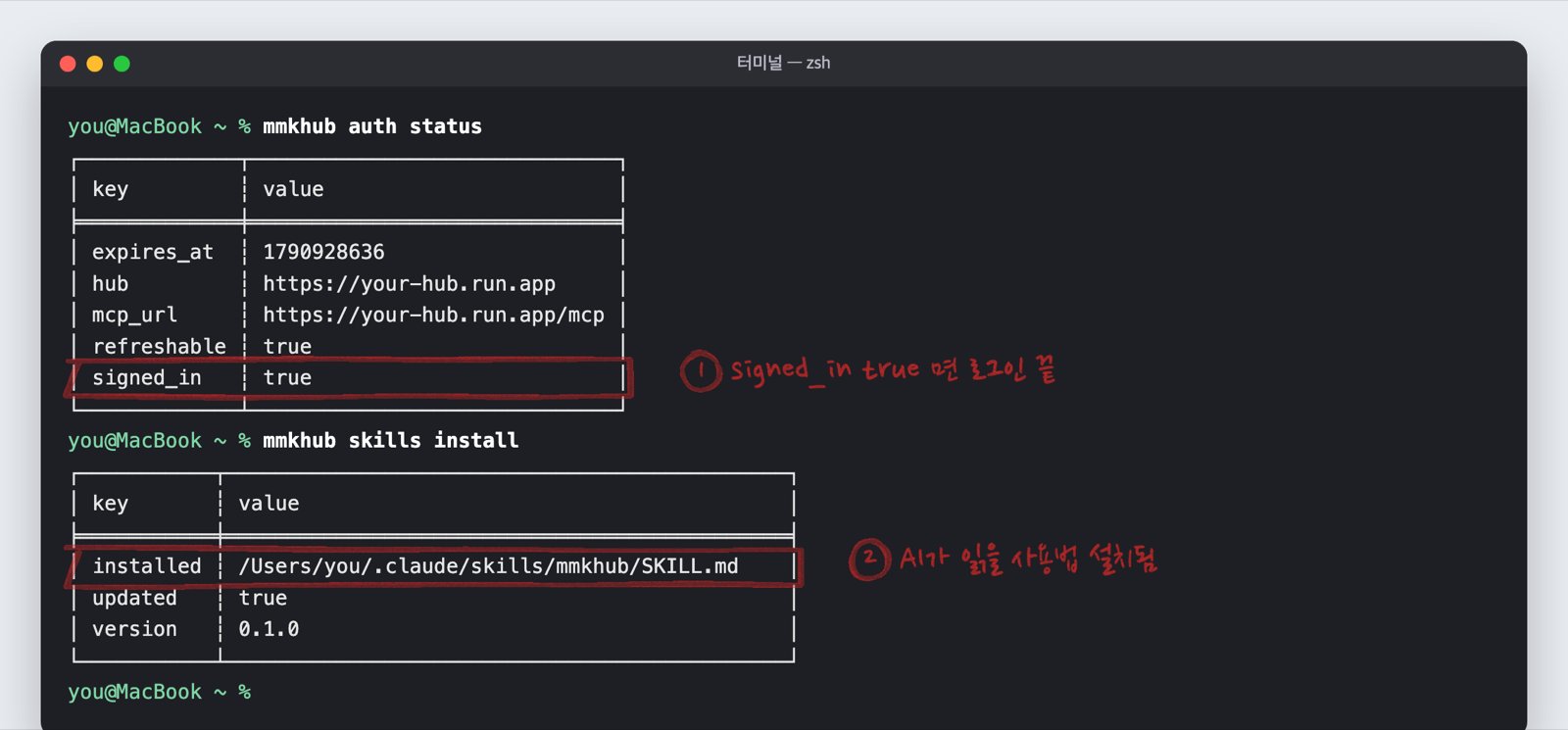 `signed_in: true` means you are connected. `skills install` puts the guide
AI agents read in place.
Search for **PowerShell** in the Start menu. No administrator rights are needed.
```powershell theme={null}
powershell -ExecutionPolicy Bypass -c "irm https://github.com/pureugong/mmkhub-releases/releases/latest/download/install.ps1 | iex"
```
mmkhub goes in `%LOCALAPPDATA%\Programs\mmkhub` and is added to your PATH.
Close PowerShell and open it again afterwards so it finds `mmkhub`.
```powershell theme={null}
mmkhub auth login --device --hub https://your-hub-address
```
A link and a code appear.
Open the link, sign in to your hub, check that the code matches and press
**Allow**. The screen is the same as in the macOS tab.
```powershell theme={null}
mmkhub auth status
mmkhub skills install
```
`signed_in: true` means you are connected.
### With a package manager
With Homebrew or Scoop, the same tool also keeps mmkhub up to date.
```bash theme={null}
brew install pureugong/tap/mmkhub
```
```powershell theme={null}
scoop bucket add mmkhub https://github.com/pureugong/scoop-bucket
scoop install mmkhub
```
### Manual download
Download the archive for your system from the
[releases page](https://github.com/pureugong/mmkhub-releases/releases) and put
`mmkhub` (`mmkhub.exe` on Windows) in a folder on your PATH. The `SHA256SUMS` file
lets you check what you downloaded.
## Usage examples
```bash theme={null}
mmkhub tools list # your hub's tools, and the command each became
mmkhub gmail search-threads --account work --query "from:me" # search mail
mmkhub drive upload report.pdf --account work # upload straight to Drive
mmkhub youtube upload video.mp4 --account youtube --title "Title" # uploads as private
mmkhub call gmail_search_threads --json '{"account":"work","query":"from:me"}'
```
Every tool connected to your hub appears as a command. Commands that cannot be
undone, such as sending mail or deleting a video, ask before they run.
## Agent mode
Run inside an agent such as Claude Code or Codex, mmkhub switches to agent mode
on its own.
* Results and errors both come back as JSON. An error carries a `hint` saying what to do next.
* A command that cannot be undone, such as sending or deleting, does not run without
`--yes`. The agent asks the user first and adds `--yes` once they agree.
* After `mmkhub skills install`, the agent finds the commands it needs by itself.
`--agent` turns agent mode on and `--no-agent` turns it off.
## Global flags
| Flag | What it does |
| - | - |
| `-o`, `--output` | Output format: `json`, `yaml`, `table`, `ndjson`. A table at a terminal, JSON in a pipe |
| `-y`, `--yes` | Run a command that cannot be undone without asking |
| `--agent`, `--no-agent` | Turn agent mode on or off |
| `--read-only` | Refuse every command that changes data |
| `--hub` | Your hub's address. Remembered after you sign in |
| `--jq` | Filter the result with a jq expression |
| `--page-all` | Follow every page to the end |
| `--from` | One call per line of JSON, from a file or standard input (`-`) |
## Environment variables
Nothing needs setting. Change these only when you need to.
| Variable | What it does |
| - | - |
| `MMKHUB_URL` | Your hub's address. Remembered after you sign in, so rarely needed |
| `MMKHUB_ACCOUNT` | The default `--account` |
| `MMKHUB_READ_ONLY` | `true` refuses every command that changes data |
| `MMKHUB_OUTPUT` | Output format: `json`, `yaml`, `table`, `ndjson` |
| `MMKHUB_ACCESS_TOKEN`, `MMKHUB_MCP_URL` | Pass a token directly, for CI or a sandbox that cannot sign in |
| `MMKHUB_CONFIG_DIR` | Where the sign-in is kept. Default `~/.config/mmkhub` |
| `MMKHUB_UPLOAD_CHUNK`, `MMKHUB_UPLOAD_RETRIES` | Upload chunk size in bytes, and how many times to retry |
| `MMKHUB_VERSION`, `MMKHUB_INSTALL_DIR` | Install script: which version, and where |
## Uninstall
* **macOS, Linux:** `rm ~/.local/bin/mmkhub`, and `rm -rf ~/.config/mmkhub` to remove
the sign-in too (with Homebrew, `brew uninstall mmkhub`)
* **Windows:** delete the `%LOCALAPPDATA%\Programs\mmkhub` and
`%USERPROFILE%\.config\mmkhub` folders (with Scoop, `scoop uninstall mmkhub`)
To cut the hub side off, revoke **MMK Hub CLI** under **Approved connectors** in
your hub's admin screen.
## Troubleshooting
mmkhub is in beta and the installers are not published yet. The same command
works once they are.
The install folder is not on your PATH. On macOS paste the `echo` line the
installer printed; on Windows open a new PowerShell window.
A code lasts ten minutes. Run the sign-in command again.
Run it as shown above, in the form `powershell -ExecutionPolicy Bypass -c "..."`.
That applies to this one command only and changes nothing on your PC.
This documentation is built and hosted on [Mintlify](https://mintlify.com), a developer documentation platform.
`signed_in: true` means you are connected. `skills install` puts the guide
AI agents read in place.
Search for **PowerShell** in the Start menu. No administrator rights are needed.
```powershell theme={null}
powershell -ExecutionPolicy Bypass -c "irm https://github.com/pureugong/mmkhub-releases/releases/latest/download/install.ps1 | iex"
```
mmkhub goes in `%LOCALAPPDATA%\Programs\mmkhub` and is added to your PATH.
Close PowerShell and open it again afterwards so it finds `mmkhub`.
```powershell theme={null}
mmkhub auth login --device --hub https://your-hub-address
```
A link and a code appear.
Open the link, sign in to your hub, check that the code matches and press
**Allow**. The screen is the same as in the macOS tab.
```powershell theme={null}
mmkhub auth status
mmkhub skills install
```
`signed_in: true` means you are connected.
### With a package manager
With Homebrew or Scoop, the same tool also keeps mmkhub up to date.
```bash theme={null}
brew install pureugong/tap/mmkhub
```
```powershell theme={null}
scoop bucket add mmkhub https://github.com/pureugong/scoop-bucket
scoop install mmkhub
```
### Manual download
Download the archive for your system from the
[releases page](https://github.com/pureugong/mmkhub-releases/releases) and put
`mmkhub` (`mmkhub.exe` on Windows) in a folder on your PATH. The `SHA256SUMS` file
lets you check what you downloaded.
## Usage examples
```bash theme={null}
mmkhub tools list # your hub's tools, and the command each became
mmkhub gmail search-threads --account work --query "from:me" # search mail
mmkhub drive upload report.pdf --account work # upload straight to Drive
mmkhub youtube upload video.mp4 --account youtube --title "Title" # uploads as private
mmkhub call gmail_search_threads --json '{"account":"work","query":"from:me"}'
```
Every tool connected to your hub appears as a command. Commands that cannot be
undone, such as sending mail or deleting a video, ask before they run.
## Agent mode
Run inside an agent such as Claude Code or Codex, mmkhub switches to agent mode
on its own.
* Results and errors both come back as JSON. An error carries a `hint` saying what to do next.
* A command that cannot be undone, such as sending or deleting, does not run without
`--yes`. The agent asks the user first and adds `--yes` once they agree.
* After `mmkhub skills install`, the agent finds the commands it needs by itself.
`--agent` turns agent mode on and `--no-agent` turns it off.
## Global flags
| Flag | What it does |
| - | - |
| `-o`, `--output` | Output format: `json`, `yaml`, `table`, `ndjson`. A table at a terminal, JSON in a pipe |
| `-y`, `--yes` | Run a command that cannot be undone without asking |
| `--agent`, `--no-agent` | Turn agent mode on or off |
| `--read-only` | Refuse every command that changes data |
| `--hub` | Your hub's address. Remembered after you sign in |
| `--jq` | Filter the result with a jq expression |
| `--page-all` | Follow every page to the end |
| `--from` | One call per line of JSON, from a file or standard input (`-`) |
## Environment variables
Nothing needs setting. Change these only when you need to.
| Variable | What it does |
| - | - |
| `MMKHUB_URL` | Your hub's address. Remembered after you sign in, so rarely needed |
| `MMKHUB_ACCOUNT` | The default `--account` |
| `MMKHUB_READ_ONLY` | `true` refuses every command that changes data |
| `MMKHUB_OUTPUT` | Output format: `json`, `yaml`, `table`, `ndjson` |
| `MMKHUB_ACCESS_TOKEN`, `MMKHUB_MCP_URL` | Pass a token directly, for CI or a sandbox that cannot sign in |
| `MMKHUB_CONFIG_DIR` | Where the sign-in is kept. Default `~/.config/mmkhub` |
| `MMKHUB_UPLOAD_CHUNK`, `MMKHUB_UPLOAD_RETRIES` | Upload chunk size in bytes, and how many times to retry |
| `MMKHUB_VERSION`, `MMKHUB_INSTALL_DIR` | Install script: which version, and where |
## Uninstall
* **macOS, Linux:** `rm ~/.local/bin/mmkhub`, and `rm -rf ~/.config/mmkhub` to remove
the sign-in too (with Homebrew, `brew uninstall mmkhub`)
* **Windows:** delete the `%LOCALAPPDATA%\Programs\mmkhub` and
`%USERPROFILE%\.config\mmkhub` folders (with Scoop, `scoop uninstall mmkhub`)
To cut the hub side off, revoke **MMK Hub CLI** under **Approved connectors** in
your hub's admin screen.
## Troubleshooting
mmkhub is in beta and the installers are not published yet. The same command
works once they are.
The install folder is not on your PATH. On macOS paste the `echo` line the
installer printed; on Windows open a new PowerShell window.
A code lasts ten minutes. Run the sign-in command again.
Run it as shown above, in the form `powershell -ExecutionPolicy Bypass -c "..."`.
That applies to this one command only and changes nothing on your PC.
This documentation is built and hosted on [Mintlify](https://mintlify.com), a developer documentation platform.